

Privacy has become a top concern for WhatsApp users as personal and business conversations continue to grow. If you share your phone with others or simply want to keep sensitive messages private, learning how to lock a chat on WhatsApp is essential.
WhatsApp’s Chat Lock feature allows you to secure individual chats using fingerprint, Face ID, or a secret code keeping your messages hidden from prying eyes. In this guide by WASheet, you’ll learn step-by-step how to lock and manage WhatsApp chats on Android and iOS for better privacy.

Highly effective for our marketing! Sent 500 personalized messages and saw a 20% boost in responses. Totally worth it!
In conversation with

Aubrey
Coaching Institute
Key Takeaways
- Locking a chat on WhatsApp protects your private conversations from unauthorized access.
- You can unlock locked chats using fingerprint, Face ID, Touch ID, or a secret code.
- Message previews from locked chats remain hidden in notifications.
- You can lock unlimited personal and group chats on WhatsApp.
- Secret codes allow you to completely hide locked chats from your chat list.
- Keeping WhatsApp updated ensures access to the latest privacy features.
Lock Chat Feature Overview
What Is the WhatsApp Chat Lock Feature?
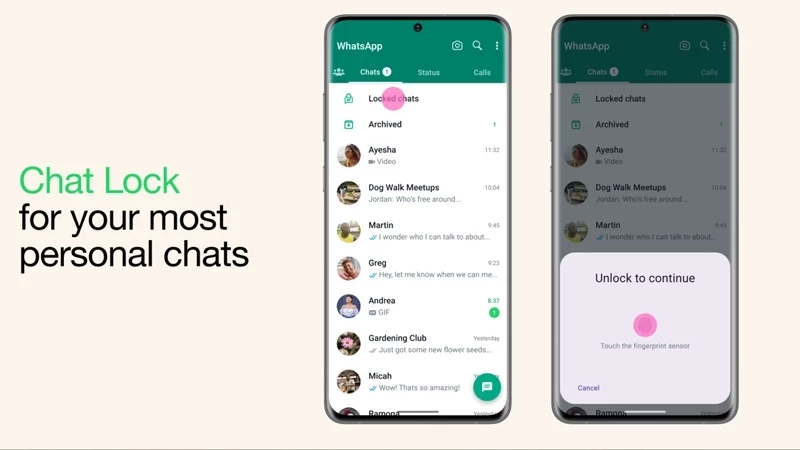
The WhatsApp Chat Lock feature is a built-in privacy tool designed to protect sensitive conversations. Once enabled, a locked chat is moved to a secure, hidden folder, separated from your main chat list.
Only you can access these chats using:
- Fingerprint authentication
- Face ID / Touch ID
- Device passcode
- A custom secret code
This feature is ideal if you:
- Share your phone with family or colleagues
- Want extra privacy for business or personal conversations
- Need protection beyond standard app lock
Pro Tip: Chat Lock works independently of WhatsApp’s end-to-end encryption, adding an extra layer of on-device security.
Privacy Benefits of Locking Chats
Using the WhatsApp chat lock feature gives you multiple privacy advantages:
- 🔒 Prevents others from opening private chats even if they access your phone
- 🔕 Hides message content in notifications
- 📁 Moves sensitive chats to a hidden folder
- 🧬 Works with biometric authentication for maximum security
| Feature | Description |
|---|---|
| Authentication | Fingerprint, Face ID, passcode, or secret code |
| Chat Visibility | Chats removed from main inbox |
| Notifications | Message previews hidden |
| Backup Security | Encrypted backups supported |
Requirements to Use Chat Lock
Before enabling chat lock, make sure:
- Your phone has biometric or screen lock enabled
- WhatsApp is updated to the latest version
- Your device supports WhatsApp’s security features
If the option doesn’t appear, update WhatsApp from the Play Store or App Store.
How to Lock a Chat on WhatsApp (Android)
Step-by-Step Guide for Android Users
- Open WhatsApp and go to the Chats tab
- Long-press the chat you want to lock
- Tap the three-dot menu (top right)
- Select Chat Lock
- Tap Continue and confirm using fingerprint or device passcode
Your chat is now locked and moved to a secure folder.
Hide Locked Chats Using a Secret Code (Android)
For extra privacy, you can completely hide locked chats.
How to set a secret code:
- Pull down on WhatsApp’s home screen to access Locked Chats
- Authenticate using fingerprint or passcode
- Tap Settings → Chat Lock
- Enable Hide Locked Chats
- Create a secret code (text, numbers, or emojis)
To access hidden chats, simply type the secret code in WhatsApp’s search bar.
| Secret Code Type | Security Level |
|---|---|
| Simple word | Low |
| Emoji sequence | Medium |
| Word + number | High |
Managing Locked Chats on Android
- Change or reset secret code anytime
- Unlock chats to return them to the main inbox
- Hide or show the locked chats folder
If you forget your secret code, WhatsApp allows you to reset it securely.
How to Lock a Chat on WhatsApp (iOS)
Step-by-Step Guide for iPhone Users
- Open WhatsApp and go to Chats
- Swipe left on the chat you want to lock
- Tap More → Chat Info
- Select Chat Lock
- Tap Turn Chat Lock On
- Confirm using Face ID, Touch ID, or passcode
Your chat is now securely locked and hidden.
Set Up a Secret Code on iOS
- Pull down on the chat list to open Locked Chats
- Authenticate with Face ID / Touch ID
- Tap Settings → Hide Locked Chats
- Create your secret code
To view hidden chats, enter the secret code in the WhatsApp search bar.
Managing Locked Chats on iPhone
- Unlock chats anytime from chat info
- Change secret code easily
- Disable hidden mode if needed
Locked chats stay protected until you manually unlock them.
How to Access and Unlock Locked Chats
Finding Locked Chats
- Pull down on the chat list
- Open the Locked Chats folder
- Authenticate using biometrics or secret code
WhatsApp is also rolling out improved support for locked chats on WhatsApp Web.
Unlock Methods
You can unlock chats using:
- Fingerprint
- Face ID / Touch ID
- Secret code
- Device passcode
If you forget your code, you can reset it through WhatsApp privacy settings.
What Happens After Unlocking?
- Full chat access is restored
- Messages, media, and replies work normally
- Chat remains locked unless you disable chat lock
Advanced Privacy Tips for WhatsApp Chats
Manage Notification Previews
Prevent messages from appearing on your lock screen:
- Disable notification previews in phone settings
- Turn off Show Content Notifications in WhatsApp App Lock
Control Media & Data Sharing
- Limit who can see profile photo, status, and last seen
- Disable automatic media downloads
- Prevent chat exports
- Use disappearing messages
Recommended WhatsApp Privacy Settings
| Setting | Best Option |
|---|---|
| Last Seen | Nobody |
| Groups | My Contacts |
| Status | My Contacts |
| Calls | Silence Unknown Callers |
| Backups | End-to-End Encrypted |
Troubleshooting WhatsApp Chat Lock Issues
Chat Lock Not Showing?
- Update WhatsApp
- Enable fingerprint or Face ID
- Restart your phone
Forgot Secret Code?
- Go to Settings → Privacy → Chat Lock
- Choose Unlock and Clear
- Set a new secret code
Your messages remain safe and intact.
Device Compatibility
| Device | Chat Lock Support |
|---|---|
| Android & iOS Phones | ✅ Yes |
| Tablets | ❌ Not supported |
Final Thoughts
Locking chats on WhatsApp is one of the most effective ways to protect your privacy. With biometric security, hidden folders, and secret codes, you stay in complete control of your conversations.
Make chat privacy a habit your messages deserve it. 🔐
Automate WhatsApp Messaging with WASheet
WASheet helps you organize, export, and automate WhatsApp data securely perfect for businesses, sales teams, and professionals who value privacy and efficiency.
Frequently Asked Questions (FAQ)
How many chats can I lock on WhatsApp?
You can lock unlimited chats personal and group.
Can I lock group chats?
Yes, group chats can also be locked.
Will locked chats show message previews?
No, message content is hidden in notifications.
Can I lock chats on WhatsApp Web?
Not yet. This feature is currently mobile-only.
What happens if I reinstall WhatsApp?
Locked chats remain secure, but you’ll need to re-authenticate.
What if I forget my secret code?
You can reset it from chat lock settings safely.
I love WASheet. The Google Sheets & Excel feature simplifies messaging. Customer service is outstanding, Thanks, team!

WASheet is my favorite WhatsApp tool! Templates are a lifesaver. With WASheet, I save hours weekly.

My WASheet experience has been incredible. The app is polished, perfect for real estate business. It's a go-to!