
Exporting WhatsApp chats on a PC or laptop has become an essential task for businesses, freelancers, customer support teams, and everyday users. Whether you’re creating a backup, saving important conversations, keeping legal records, or organizing client communications, having a reliable way to export WhatsApp chats can save hours of manual work.
While WhatsApp includes a basic chat export feature on mobile devices, it isn’t designed for users who need to export multiple conversations, preserve formatting, or include media files. This guide explains every available method in 2026 and shows why WASheet has become one of the easiest and most complete solutions for exporting WhatsApp chats directly from your computer.
Watch: Export WhatsApp Chats on PC
Watch the tutorial below to learn how to export WhatsApp chats from your PC or laptop, including chats with media, group conversations, and professionally formatted backups:
What You’ll Learn
If you’re searching for any of the following, this guide covers everything:
- Export WhatsApp chats on PC
- Export WhatsApp chats from WhatsApp Web
- Download WhatsApp conversations to computer
- Export WhatsApp chat with images and videos
- Backup WhatsApp chats on laptop
- Save WhatsApp chats as HTML
- Export WhatsApp group chats
- Download WhatsApp message history
- WhatsApp chat backup for business
- Bulk export WhatsApp conversations
This complete guide answers all of these questions in one place.
Why Export WhatsApp Chats?
People export WhatsApp conversations for many different reasons. Some simply want a backup, while others rely on exported chats for business operations.
Common reasons include:
- 📁 Personal backup
- 💼 Business record management
- 📞 Customer support documentation
- 📊 CRM integration
- ⚖️ Legal or compliance purposes
- 🤝 Team collaboration
- 📱 Device migration
- ☁️ Long-term cloud storage
- 🖨️ Printing conversations
- 📂 Internal documentation
As WhatsApp becomes a primary communication platform for businesses worldwide, exporting chats in an organized format has become increasingly important.
Method 1: Export WhatsApp Chats Using the Official Mobile Feature
WhatsApp provides a built-in export option on Android and iPhone.
Steps
- Open WhatsApp.
- Open the conversation.
- Tap the three-dot menu.
- Select More → Export Chat.
- Choose With Media or Without Media.
- Save using Email, Google Drive, or another sharing option.
Advantages
- Official WhatsApp feature
- No third-party software
- Easy for personal use
Limitations
- One chat at a time
- No bulk export
- Media limitations
- Time-consuming
- Not suitable for businesses
Method 2: Export Chats from WhatsApp Web Manually
Some users copy conversations directly from WhatsApp Web.
Steps
- Open WhatsApp Web.
- Scan the QR code.
- Open the conversation.
- Select messages manually.
- Paste into Word or Notepad.
Advantages
- No installation required
- Works in any browser
Limitations
- Manual process
- Formatting is lost
- Media isn’t organized
- Cannot export chats in bulk
- Not suitable for long conversations
Best Way to Export WhatsApp Chats on Laptop or PC in 2026
If you regularly manage WhatsApp conversations, a dedicated export solution provides a much better experience.
WASheet is designed specifically for users who want to export WhatsApp chats directly from WhatsApp Web while preserving conversation formatting, timestamps, media, and organization.
Instead of manually copying messages, WASheet generates structured exports that are easy to archive, share, and review.
Why Businesses Choose WASheet
- ✅ Export chats directly from WhatsApp Web
- ✅ Export individual chats and group chats
- ✅ Preserve timestamps
- ✅ Maintain original message order
- ✅ Export available media files
- ✅ Professional HTML exports
- ✅ Fast export process
- ✅ Secure browser-based solution
- ✅ No complicated desktop software
How to Export WhatsApp Chats Using WASheet
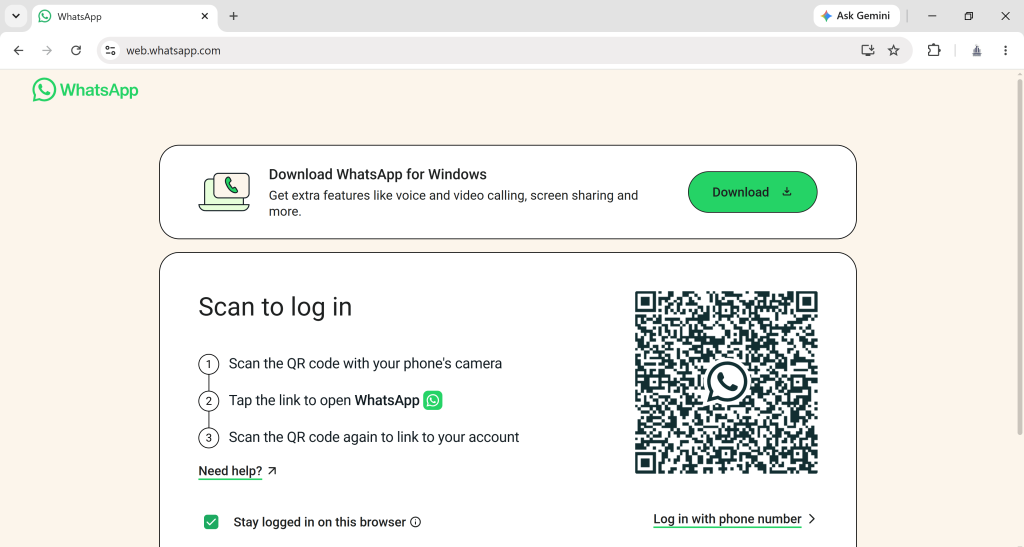
- Open WhatsApp Web and Sign in.
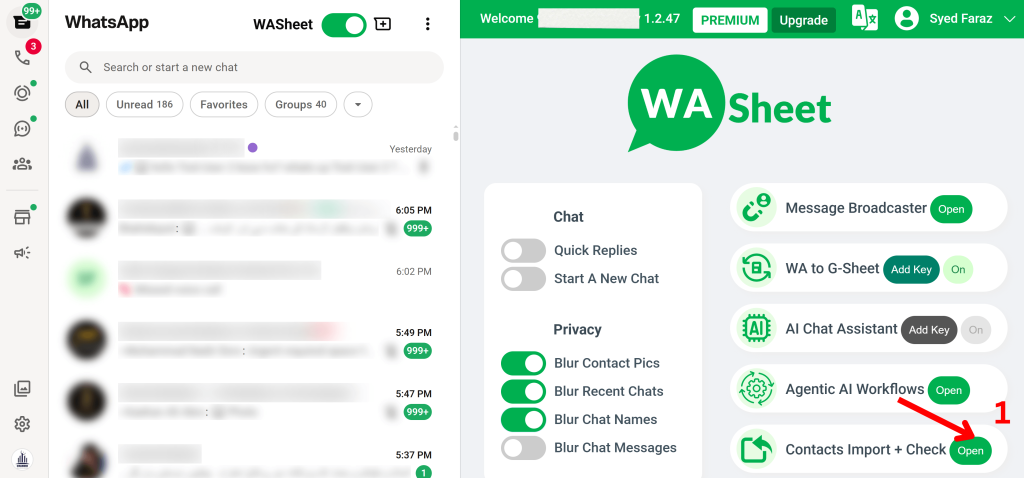
- Install and open the WASheet Extension.
- Open Contact Import + Check.
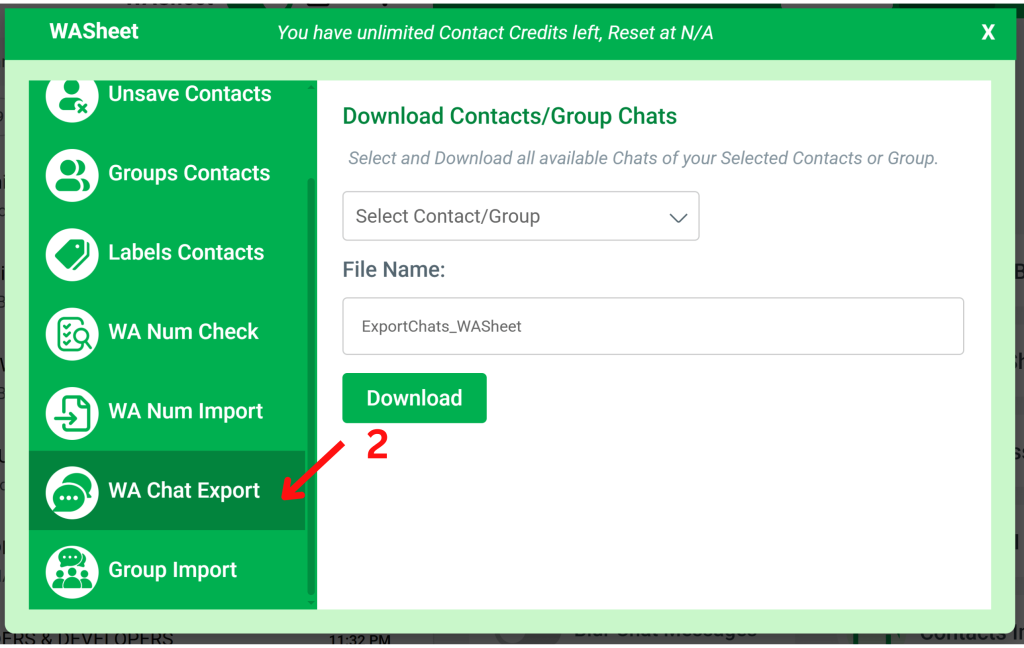
- Click WA Chat Export.
- Select the desired chat.
- Click Download.
Within seconds, WASheet generates a complete export of your selected conversation.
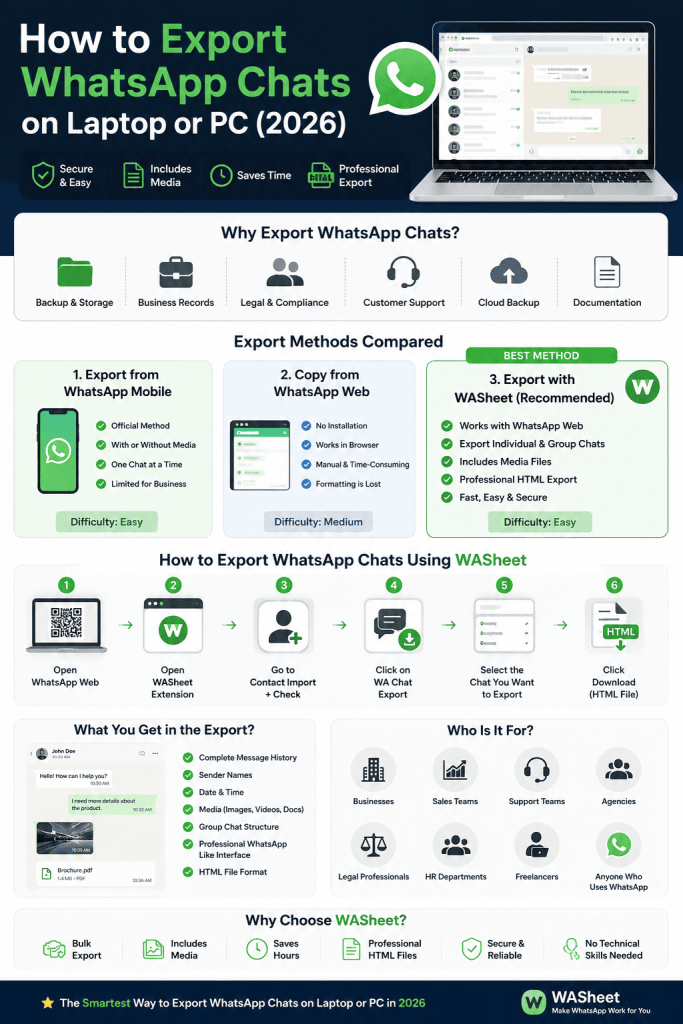
What’s Included in the Export?
Unlike plain text copies, WASheet preserves the complete conversation structure.
- Complete message history
- Sender names
- Date and timestamps
- Original message sequence
- Images (when available)
- Videos (when available)
- Documents (when available)
- Group chat conversations
- Professional WhatsApp-style interface
Professional HTML Export
One of WASheet’s biggest advantages is its clean HTML export format.
Instead of receiving a plain text document, your exported chats closely resemble the WhatsApp interface, making them much easier to read and archive.
Benefits include:
- Better readability
- Professional appearance
- Printable layout
- Easy sharing
- Long-term storage
- Ideal for documentation
Who Should Use WASheet?
- Small businesses
- Sales teams
- Customer support departments
- Marketing agencies
- Legal professionals
- HR departments
- Freelancers
- Consultants
Feature Comparison
| Feature | WhatsApp Mobile | Manual Copy | WASheet |
|---|---|---|---|
| Export on PC | Limited | Yes | ✅ |
| Bulk Export | ❌ | ❌ | ✅ |
| Group Chats | Limited | Manual | ✅ |
| Preserve Formatting | Partial | ❌ | ✅ |
| Include Media | Limited | ❌ | ✅ |
| HTML Export | ❌ | ❌ | ✅ |
| Business Ready | ❌ | ❌ | ✅ |
Frequently Asked Questions
Can I export WhatsApp chats directly from my PC?
WhatsApp Web doesn’t currently provide a built-in bulk export feature. WASheet makes exporting chats directly from your PC much easier.
Can I export chats with photos and videos?
Yes. WASheet supports exporting conversations together with available media files.
Can I export WhatsApp group chats?
Yes. Both individual and group conversations can be exported.
What format are chats exported in?
Chats are exported as professionally formatted HTML files that open in any modern web browser.
Do I need desktop software?
No. WASheet works as a browser extension alongside WhatsApp Web.
Is exporting WhatsApp chats safe?
Yes. Exporting chats from your own authenticated WhatsApp Web session is safe when handled responsibly.
Tips for Better WhatsApp Backups
- Export important chats regularly.
- Store backups securely.
- Protect sensitive customer information.
- Create multiple backup copies.
- Organize exports by project or client.
- Use encrypted cloud storage whenever possible.
Why WASheet is One of the Best WhatsApp Export Tools in 2026
Many export methods still rely on manual copying or limited mobile features. WASheet simplifies the entire process by providing fast, structured, and professional chat exports directly from WhatsApp Web.
Whether you’re backing up customer conversations, documenting projects, or maintaining business records, WASheet delivers a scalable solution designed for modern WhatsApp users.
Final Verdict
Exporting WhatsApp chats on a PC has never been easier. While WhatsApp’s built-in export feature works for occasional backups, businesses and professionals often require a more organized and efficient workflow.
WASheet offers one of the most complete WhatsApp chat export solutions available in 2026 by preserving conversation formatting, timestamps, media, and overall readability.
If you regularly manage customer conversations, legal records, CRM communication, or business documentation, WASheet provides a faster and more professional alternative to manual exports.
Conclusion
Whether you’re creating personal backups or managing thousands of customer conversations, exporting WhatsApp chats from your PC should be simple, secure, and well organized.
With support for WhatsApp Web, HTML exports, media preservation, and professional formatting, WASheet makes WhatsApp chat management significantly easier for individuals and businesses alike.