
If you’re looking for the fastest and most reliable way to bulk import contacts into WhatsApp or WhatsApp Business, WASheet offers one of the most complete solutions available in 2026.
Importing hundreds or even thousands of contacts into WhatsApp no longer has to be a slow, manual process. Whether your contacts are stored in an Excel spreadsheet, Google Sheets, CSV file, or another WhatsApp account, you can now add them to WhatsApp in just a few clicks.
With its powerful WA NUM IMPORT feature, you can import contacts directly from spreadsheets, save them to your mobile device, and have them immediately available inside WhatsApp without manually creating each contact.
Watch the below youtube video to learn How to Import Contacts from Excel to WhatsApp:
What Does “Import Contacts on WhatsApp” Mean?
Importing contacts on WhatsApp refers to transferring a list of phone numbers into your phone’s contact list so they automatically become available in WhatsApp.
People commonly need this when they want to:
- Import contacts from Excel to WhatsApp
- Add contacts from Google Sheets
- Move contacts to a new phone
- Transfer contacts between WhatsApp accounts
- Upload customer lists for WhatsApp Business
- Organize sales leads or CRM contacts
Traditionally, this process involved manually saving every phone number or syncing through multiple services.
Today, modern tools like WASheet simplify the entire workflow.
Why Choose WASheet for WhatsApp Contact Import?
WASheet is designed specifically for businesses, marketers, customer support teams, and professionals who regularly manage large contact lists.
Instead of manually saving contacts one by one, WASheet lets you import entire spreadsheets with just a few steps.
Key Benefits
- Import contacts directly from Excel, CSV, or Google Sheets
- Supports WhatsApp and WhatsApp Business
- Save thousands of contacts in bulk
- No manual contact creation
- Fast processing
- Works with customer databases, CRM exports, and lead lists
- Privacy-focused with no unnecessary data storage
Whether you’re importing 50 contacts or 100,000, the workflow remains simple and efficient.
Introducing WA NUM IMPORT
WA NUM IMPORT is WASheet’s dedicated contact importing engine built specifically for WhatsApp users.
It helps eliminate the traditional challenges of importing contacts by allowing users to upload spreadsheet files and process large contact lists quickly.
Supported file types include:
- Excel (.xlsx)
- Excel (.xls)
- CSV (.csv)
- Google Sheets exports
Instead of spending hours manually saving phone numbers, WA NUM IMPORT automates the process while maintaining accurate contact information.
Two Ways to Import Contacts into WhatsApp
There are two ways to get contacts from a spreadsheet into WhatsApp: the manual method, and using a dedicated tool like WASheet.
Method 1: Manual Import (Free, No Extension)
You can do this without any third-party tool, but it involves converting your file and syncing through your phone’s account:
Save your Excel file as a CSV.
Go to Google Contacts on desktop and sign in with the Google account linked to your phone.
Click Import, upload your CSV, and map the columns (name, phone number).
On your phone, go to Settings > Accounts > Google and make sure Contacts sync is turned on.
Wait for the sync to complete, then open WhatsApp — the new contacts will appear automatically once WhatsApp refreshes its contact list.
This works, but it’s slow for large lists, depends on Google sync timing (which can lag by several minutes), and gives you no control over formatting errors like missing country codes or duplicate entries.
Method 2: WASheet’s WA NUM IMPORT (Fast, Built for Bulk)
WASheet skips the CSV-to-Google-Contacts detour entirely. You upload your Excel, CSV, or Google Sheets file directly inside the extension, map your columns, and the contacts are saved straight to your device and available in WhatsApp no sync wait, no manual account import step. This is the difference that matters at scale: importing 5,000 leads manually through Google Contacts can take an entire afternoon of troubleshooting sync issues; WA NUM IMPORT processes the same file in minutes.
Manual vs. WASheet – Quick Comparison
| Manual (Google Contacts) | WASheet (WA NUM IMPORT) | |
|---|---|---|
| Cost | Free | Free tier + paid plans |
| Extra software needed | No | Chrome/Edge extension |
| Handles 1,000+ contacts smoothly | Not reliably | Yes |
| Sync/wait time | Minutes to hours | Near-instant |
| Column mapping control | Limited | Full control |
| WhatsApp Business support | Partial | Full |
| Risk of formatting errors (lost + country code) | Higher | Lower — built-in validation |
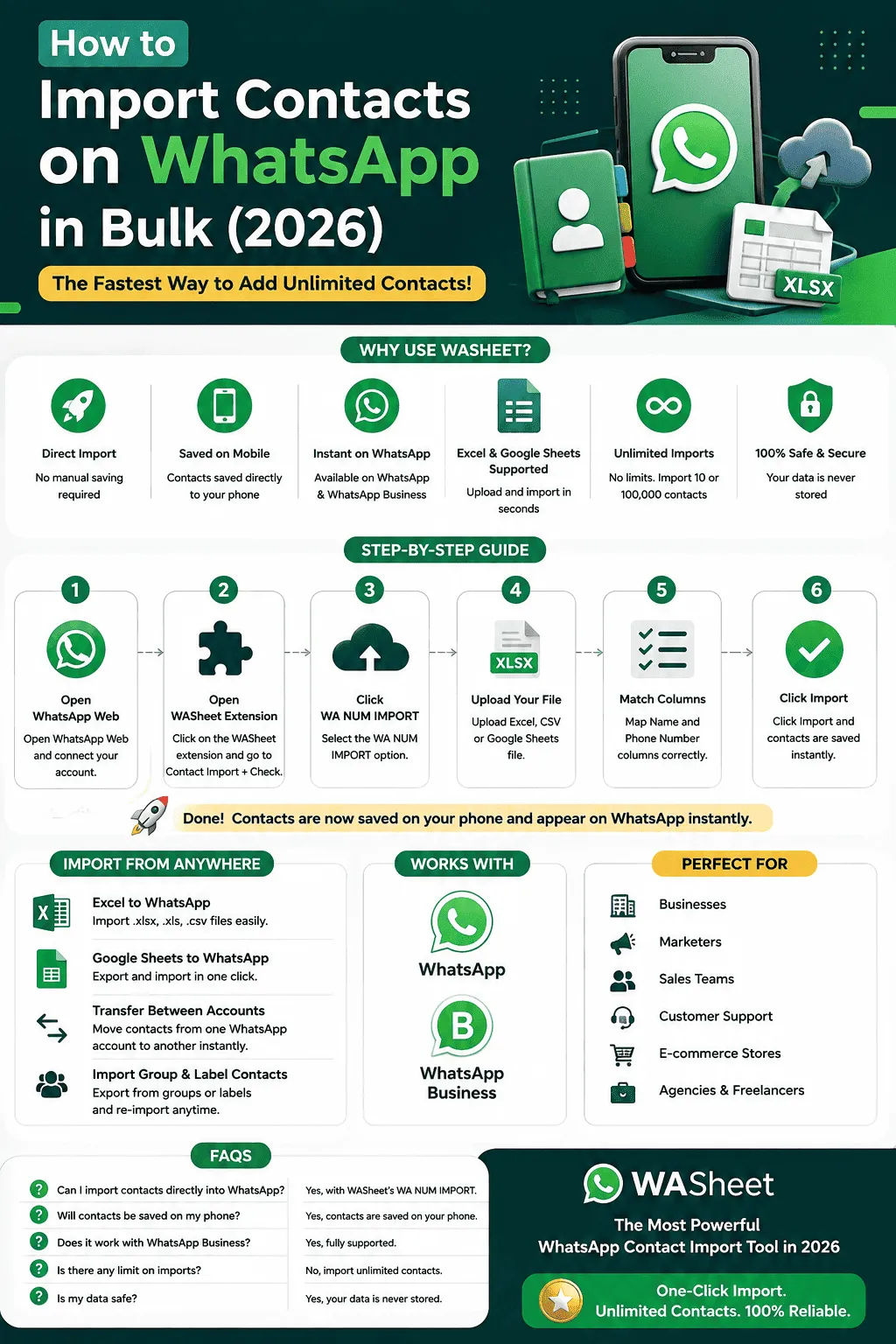
How to Import Contacts on WhatsApp Using WASheet
Follow these simple steps to import contacts in bulk.
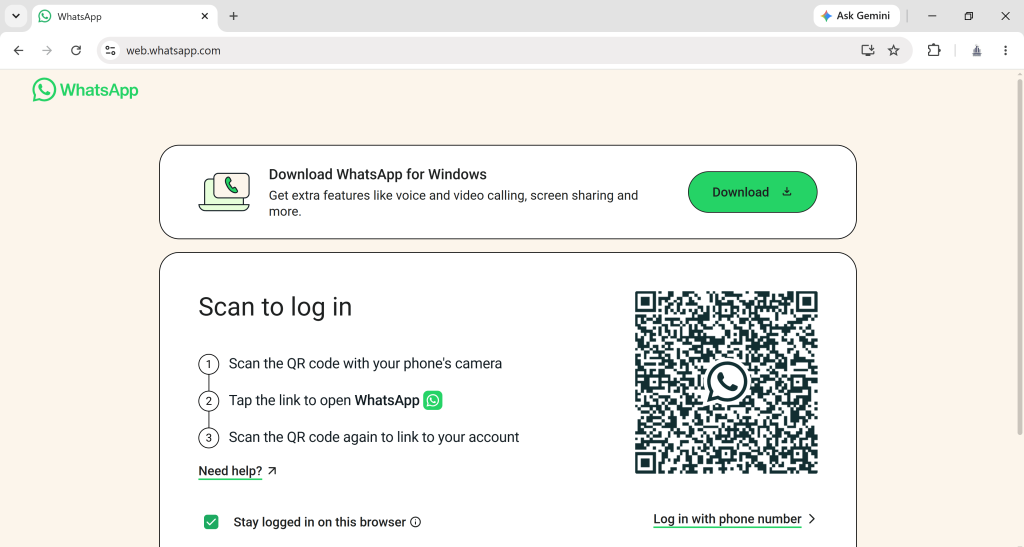
Step 1: Open WhatsApp Web
Open WhatsApp Web in your browser and Log in your account.
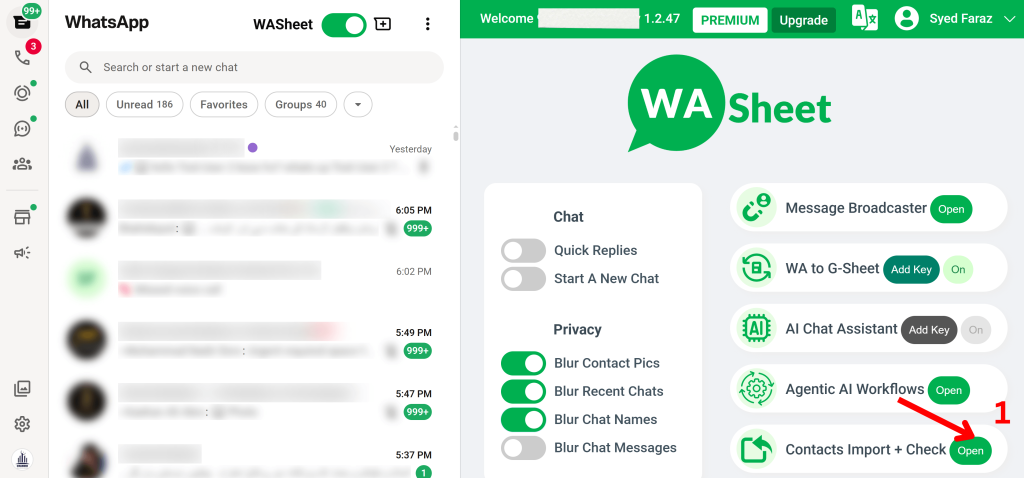
Step 2: Open the WASheet Extension
Open the WASheet Chrome Extension and navigate to Contact Import + Check.
Step 3: Launch WA NUM IMPORT
Click WA NUM IMPORT to begin the import process.
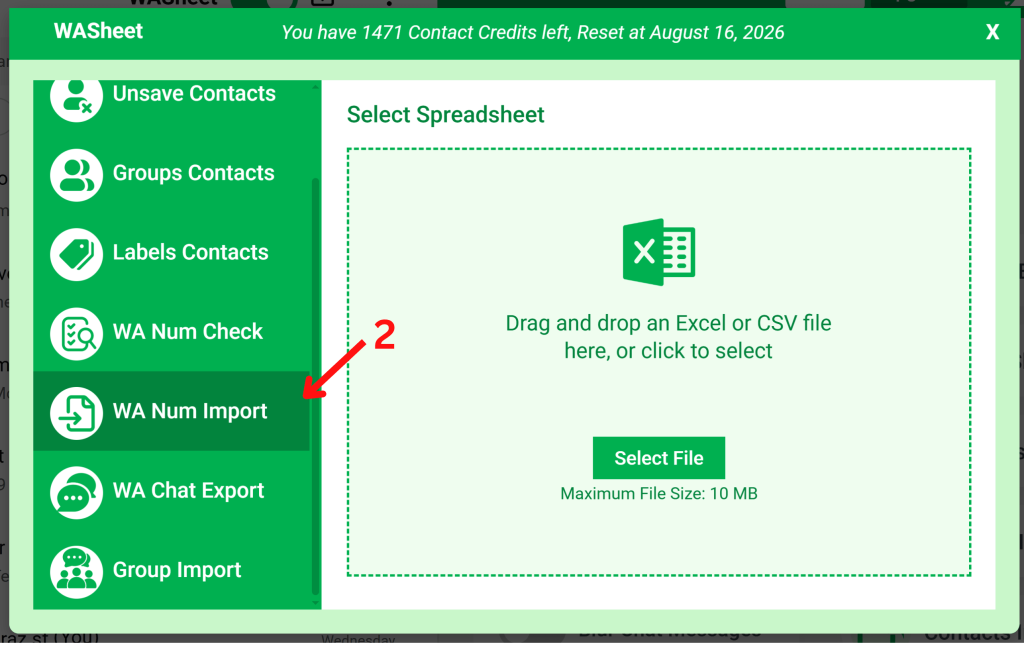
Step 4: Upload Your Contact File
- Excel spreadsheet
- CSV file
- Google Sheets export
Step 5: Match Your Columns
Map the required fields such as Contact Name and Phone Number to ensure every record is imported correctly.
Step 6: Start the Import
Click Import. WASheet processes your file and prepares the contacts for your device. Once completed, the imported contacts become available inside WhatsApp.
Import Contacts from Excel to WhatsApp
Excel remains one of the most popular formats for storing contact databases.
- Customer databases
- Employee directories
- Sales leads
- Vendor lists
- Marketing contacts
Supported formats include .xlsx, .xls, and .csv. No complicated conversions are required.
Import Google Sheets Contacts into WhatsApp
Many businesses maintain customer records inside Google Sheets. WASheet allows you to use those spreadsheets as your source for WhatsApp contacts.
- CRM exports
- Sales pipelines
- Customer support databases
- Event registrations
- Marketing campaigns
Import Contacts into WhatsApp Business
Businesses often need to manage hundreds or thousands of customer contacts.
- Customers
- Leads
- Suppliers
- Vendors
- Business contacts
WASheet fully supports WhatsApp Business, making bulk contact management simple and efficient.
Transfer Contacts Between WhatsApp Accounts
Changing your phone or WhatsApp number? WASheet simplifies contact migration.
- Export your existing contacts.
- Prepare the contact file.
- Import it using WA NUM IMPORT.
- Access your contacts on the new WhatsApp account.
This workflow is ideal for new phones, business migrations, secondary WhatsApp accounts, and team devices.
Import WhatsApp Group Contacts
If you’ve previously exported WhatsApp group members, you can easily re-import those contact lists using WASheet.
- Reconnect with customers
- Build marketing audiences
- Organize communities
- Manage contact databases
Import WhatsApp Label Contacts
WhatsApp Business labels help organize conversations. After exporting labeled contacts, you can import them again whenever needed for future campaigns.
Who Can Benefit from Bulk WhatsApp Contact Import?
- Small Businesses
- Sales Teams
- Marketing Agencies
- Customer Support Teams
- Real Estate Professionals
- E-commerce Stores
- Educational Institutions
- Healthcare Providers
- Freelancers
- Event Organizers
Best Practices Before Importing Contacts
- Use international phone numbers with country codes.
- Remove duplicate entries.
- Verify phone numbers before importing.
- Keep contact names consistent.
- Separate campaigns into different spreadsheets.
Common Issues When Importing Contacts to WhatsApp
Even with the right tool, a few recurring problems trip people up. Here’s how to avoid them:
Missing country codes (the “+” disappears)
Excel often treats phone number columns as numeric values and strips leading symbols like +. Before importing, format the phone number column as Text, not Number, and confirm every entry includes the full international code (e.g. +1, +92, +44).
Contacts not showing up in WhatsApp right away
WhatsApp reads from your phone’s contact list, not directly from your file. If contacts don’t appear immediately after import, open WhatsApp’s New Chat screen and pull down to refresh, or restart the app. This is normal and usually resolves within a minute or two.
Duplicate contacts after import
Duplicates usually come from importing the same list more than once, or from slightly inconsistent formatting between two source files (e.g. one has +1234567890, another has 1234567890). Clean and de-duplicate your spreadsheet before importing rather than after.
Large lists failing partway through
For very large lists (10,000+), it helps to split the file into smaller batches a few thousand contacts per file rather than importing everything in a single pass, especially on older devices with limited storage.
“Can’t import contacts” error
This is most often a formatting issue in the source file a missing header row, a blank required column, or unsupported characters in the name field. Double-check your column headers match what the import tool expects (Name, Phone Number) before re-uploading.
Why Professionals Choose WASheet
- Fast bulk contact importing
- Excel, CSV & Google Sheets support
- Business-friendly workflow
- Designed specifically for WhatsApp users
- Supports large contact databases
- Time-saving automation
- Easy-to-use interface
Frequently Asked Questions
Can I import contacts directly into WhatsApp?
Yes. WASheet’s WA NUM IMPORT feature makes it easy to process contact lists from supported spreadsheet formats for use with WhatsApp.
Does it work with WhatsApp Business?
Yes. WASheet supports both WhatsApp Messenger and WhatsApp Business.
Can I import contacts from Excel?
Absolutely. Excel (.xlsx, .xls) and CSV files are fully supported.
Can I use Google Sheets?
Yes. Export your Google Sheet and import it using one of the supported formats.
Is there a limit on the number of contacts?
WASheet is built to handle both small and large contact databases efficiently.
Is my data secure?
Yes. WASheet is designed with privacy in mind and does not unnecessarily store your contact information.
How many contacts can WhatsApp import at once?
There’s no fixed cap enforced by WhatsApp itself, but very large single-batch imports (10,000+) are more reliable when split into smaller files. WASheet’s WA NUM IMPORT handles large volumes in a single pass, but batching is still good practice on older or storage-limited devices.
Can I import contacts into WhatsApp without saving them to my phone first?
No, WhatsApp reads contacts from your device’s phone book, so any import method (manual or WASheet) ultimately saves the numbers to your phone’s contacts first, then WhatsApp picks them up automatically.
Why does WhatsApp say it can’t import my contacts?
This is almost always a source file issue missing column headers, blank phone number fields, or numbers missing their country code. Fixing the spreadsheet formatting resolves it in most cases.
Final Thoughts
If you’re searching for the easiest way to import contacts into WhatsApp in 2026, WASheet provides a fast, reliable, and professional solution.
Whether you’re importing contacts from Excel, Google Sheets, CSV files, or transferring contacts between WhatsApp and WhatsApp Business, WASheet helps simplify the entire process while saving valuable time.
Its powerful WA NUM IMPORT feature is built for businesses, marketers, sales teams, and professionals who need an efficient way to manage and organize large WhatsApp contact lists.