
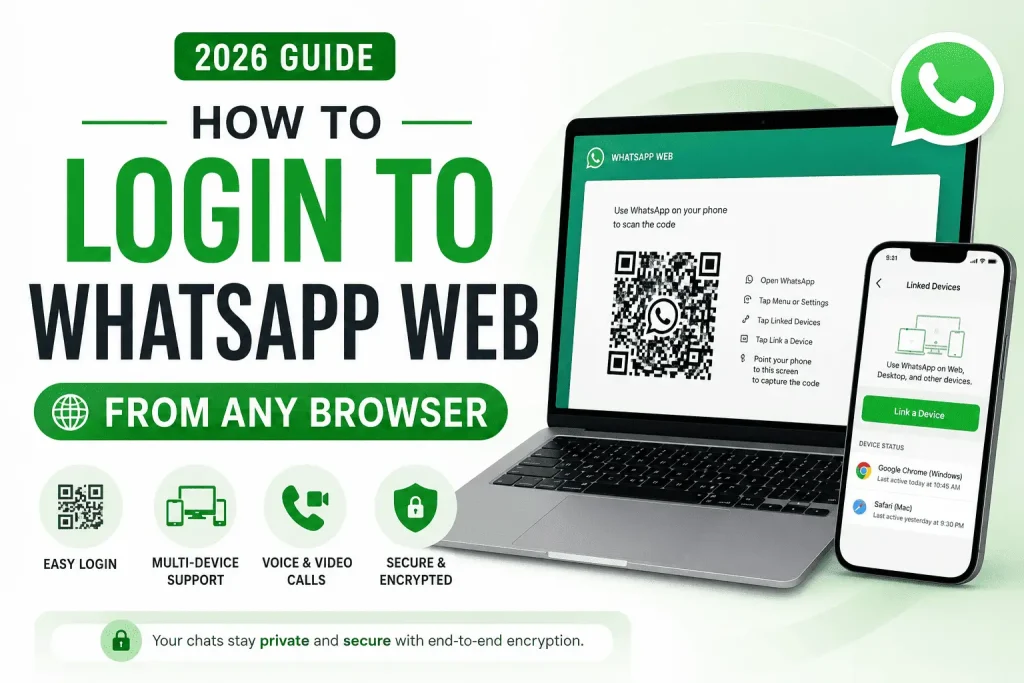
Looking for the WhatsApp Web login page? You can access your WhatsApp messages from a computer or laptop in just a few steps. Open WhatsApp Web in your browser, scan the QR code using WhatsApp on your Android or iPhone, and your chats will appear instantly. In this guide, you’ll learn how to log in to WhatsApp Web, link your device, use WhatsApp Web on PC or Mac, troubleshoot QR code and login problems, and securely log out when you’re finished.
WhatsApp Web login is still the fastest way to move your conversations from a five-inch screen to a full keyboard but the product behind that login screen has changed more in the last six months than it did in the previous three years. Voice and video calling finally reached the browser in February 2026, group calling followed by summer, and Meta has drawn a hard new line around what AI is allowed to do inside a WhatsApp chat.
How to Log in to WhatsApp Web from Any Browser in 2026
This guide covers the login itself first specially how to login to WhatsApp web from any browser, then everything that’s changed around it: what’s new, what’s still missing, and how to close the gap if you’re messaging more than a handful of people at once.
Why WhatsApp Web Login Still Matters in 2026
Typing on a real keyboard, dragging files straight from your desktop, and keeping a chat open on a second monitor while you work are still the core reasons people reach for the browser instead of their phone. What’s changed is how complete that experience now feels:
- Calling has arrived: WhatsApp Web spent over a decade as a text-and-media-only client while the Windows and Mac desktop apps got calling back in 2021. That gap closed in February 2026.
- Multi-device sync is mature: Your phone doesn’t need to stay online once a device is linked messages sync independently over an encrypted connection.
- The web app is quietly becoming the desktop app: WhatsApp’s Windows client has been shifting toward a web-wrapper architecture, so the improvements you see in the browser increasingly show up everywhere else too.
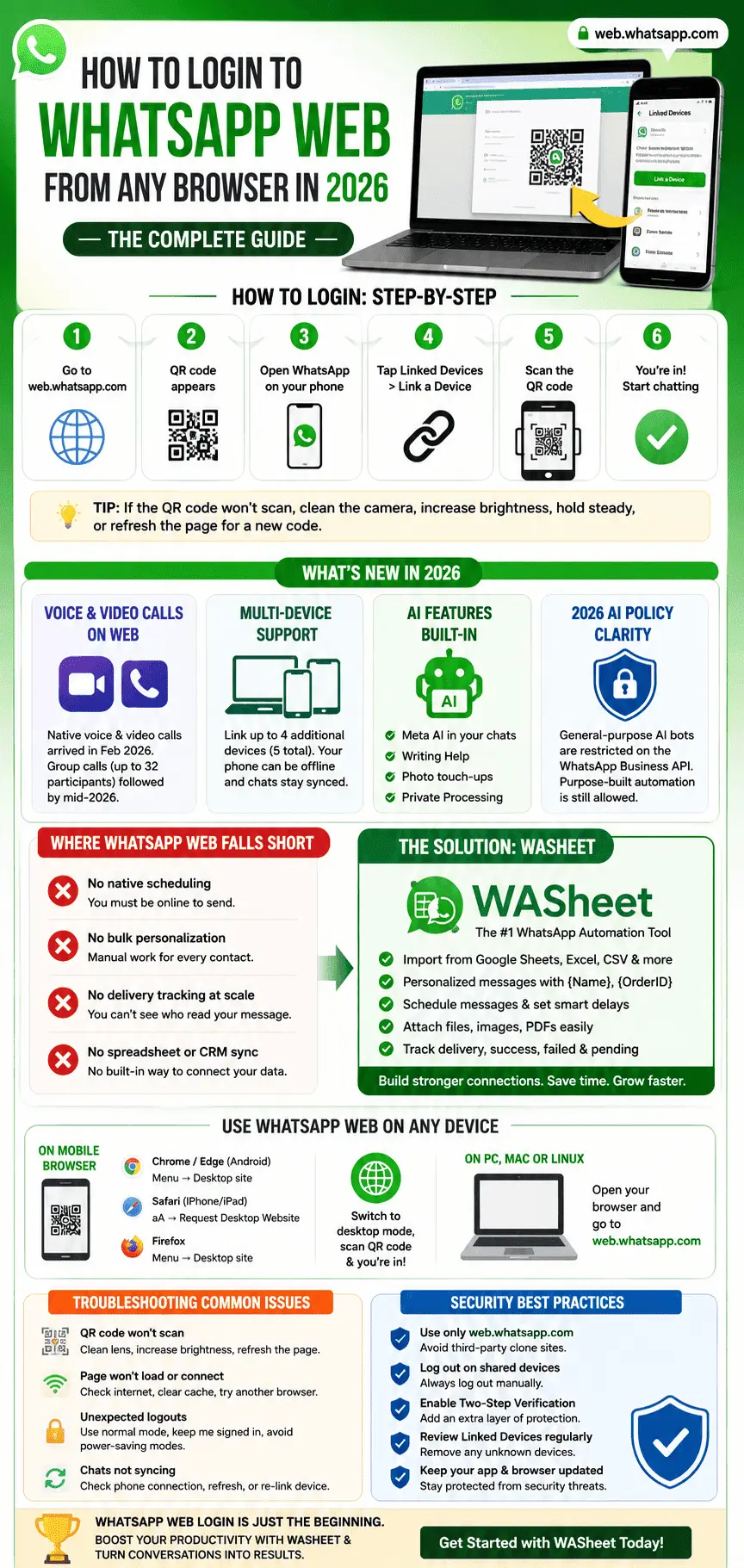
Step-by-Step: WhatsApp Web Login via Browser on PC, Mac, or Linux
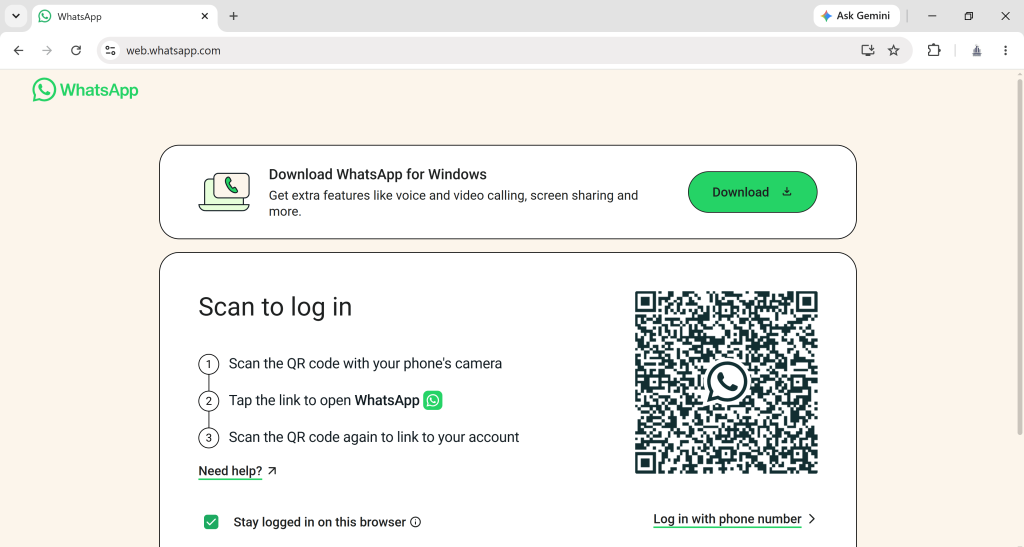
- Open a browser and go to web.whatsapp.com.
- A QR code appears on screen.
- On your phone, open WhatsApp and tap Settings (iPhone) or the three-dot menu (Android), then Linked Devices.
- Tap Link a Device.
- Point your phone’s camera at the QR code until it scans.
- Your chats load automatically and you can start messaging.
If the QR code won’t scan clean the camera lens, raise your screen brightness, hold the phone steady about 8–10 inches from the screen, or refresh the page for a new code QR codes expire after roughly a minute for security reasons.
Logging In from a Phone or Tablet Browser
WhatsApp Web login also works from a mobile browser if you force desktop mode first:
- Chrome or Edge (Android): tap the three-dot menu → Desktop site
- Safari (iPhone/iPad): tap the aA icon in the address bar → Request Desktop Website
- Firefox: same Desktop site toggle in the menu
Once the page renders in desktop mode, the QR code appears and the linking steps are identical to a computer.
What’s New: Multi-Device Support in 2026
WhatsApp lets you link up to four additional devices alongside your primary phone five in total. Each linked device connects and stays synced independently, so your phone can be powered off for extended periods without breaking the connection on your computer. If you don’t recognize a device in your Linked Devices list, remove it immediately; that list is also your first line of defense against unauthorized access.
Voice and Video Calling Is Now Fully Live on the Browser
WhatsApp Web calling moved out of beta on July 28, 2026. One-to-one and group calls now work directly in the browser for everyone in the rollout, no desktop app or download required a gap that had existed since the desktop apps got calling back in 2017.
Along with the launch, Meta shipped four calling upgrades that apply across web, phone, and desktop:
- Call Transfer move an active call from your phone to the browser (or back) without hanging up or rejoining.
- Waiting Room anyone joining a call via link now lands in a waiting room first.
- QuickHD video quality ramps to HD faster in the first seconds of a call, instead of starting soft and sharpening.
- Background noise suppression cuts ambient noise on calls automatically.
Calls made from the browser carry the same end-to-end encryption as the app, and support screen sharing, reactions, and a full call history tab. The rollout is global but staged, so if you don’t see the call icon yet, updating WhatsApp on your phone and waiting a few days usually resolves it the desktop app is no longer meaningfully ahead of the browser on calling.
AI Features Built Directly into WhatsApp
Meta has pushed AI deep into the WhatsApp experience itself, separate from anything third parties build:
- Meta AI sits in your chat list as its own conversation ask it questions, generate images, or summarize a group thread you’ve fallen behind on.
- Writing Help lets you rephrase, proofread, or adjust the tone of a message before you send it, and can now suggest a full draft reply based on the conversation.
- Photo touch-ups let you edit an image remove an object, swap a background right inside the chat window before sending.
- Meta says messages processed for these features are handled through Private Processing, meaning the content isn’t visible to Meta or WhatsApp staff. You can turn any of this off individually in Settings.
WhatsApp’s 2026 AI Policy, What It Actually Restricts
There’s been some confusion about what Meta’s new AI rules cover, so it’s worth being precise: starting January 15, 2026, Meta updated the WhatsApp Business Solution Terms to ban general-purpose, open-ended AI assistants the ChatGPT-or-Perplexity-style “ask me anything” bots from operating through the WhatsApp Business API. Structured, purpose-built automation is still explicitly allowed: order tracking, appointment booking, FAQ handling, and outreach tools like WASheet that automate sending rather than simulate an open-ended AI conversation. The policy doesn’t touch how you personally log into and use WhatsApp Web it’s aimed at businesses distributing general AI assistants through WhatsApp’s official API.
Where WhatsApp Web Still Falls Short
Even with calling and AI features added, WhatsApp Web wasn’t built for anyone messaging more than a handful of people a day. The gaps we run into constantly:
- No native scheduling you can’t queue a message for 9 a.m. tomorrow; you have to be at the keyboard when you hit send.
- No bulk personalization sending the same message to 50 contacts still means copy-pasting 50 times or manually swapping in each name.
- No delivery tracking at scale WhatsApp Web tells you if one message was read, not which of 200 contacts opened yours.
- No spreadsheet or CRM sync if your contact list lives in Google Sheets or Excel, there’s no built-in way to connect it.
That’s the specific gap WASheet was built to close.
Extending WhatsApp Web with WASheet
WASheet is a browser extension that layer’s automation and AI-agent capabilities on top of your existing WhatsApp Web login it doesn’t replace the web client, it extends it for anyone doing outreach at volume plus with WASheet you can export group members list and label contacts from whatsapp web.
Getting set up:
- Install WASheet from the Chrome or Edge extension store.
- Authorize access to your Google Sheets or upload a contact list directly.
- Log into WhatsApp Web as normal WASheet works alongside your existing session.
Preparing your contact data:
import from Google Sheets, Excel (.xlsx), CSV files, or a pasted list. Keep phone numbers clean, no dashes or spaces, with consistent country codes.
Sending personalized messages:
- Map spreadsheet columns to variables like
{Name}or{OrderID} - Draft or reuse message templates
- Preview before sending, attach images, documents, or PDFs where needed
- Set a delay between sends to avoid tripping WhatsApp’s spam detection
- Track which messages succeeded, failed, or never reached the recipient

Always honor opt-out requests and keep your list to people who’ve agreed to hear from you WhatsApp Web login gives you the connection, but staying within messaging norms is what keeps that connection working.
Troubleshooting Common WhatsApp Web Login Issues
QR code won’t scan
Clean the camera lens, increase screen brightness, hold the phone at a different distance, refresh for a new code, or try another browser.
Page won’t load or connect
Check the internet connection on both devices, clear the browser cache and cookies, temporarily disable extensions or a VPN, or switch browsers.
Unexpected logouts
Use normal browsing mode rather than incognito, select “Keep me signed in” if it’s offered, and avoid power-saving modes that suspend background activity.
Chats not syncing
Confirm your phone is online, refresh the browser tab, restart your phone, and on Android, disable battery optimization for WhatsApp. If nothing works, unlink and re-link the device from Settings → Linked Devices.
Security Best Practices for WhatsApp Web
- Only ever log in through web.whatsapp.com never a third-party clone site.
- Confirm the padlock icon and valid HTTPS before scanning anything.
- Log out manually after using a public or shared computer.
- Turn on Two-Step Verification or passkey login if it’s available on your account.
- Review your Linked Devices list periodically and remove anything unfamiliar.
- Watch for unusual account activity and act on it immediately researchers have continued probing weaknesses in messaging-app encryption handshakes industry-wide, which is a good general reminder to keep the app updated rather than a WhatsApp-specific alarm.
Logging Out and Managing Sessions
From the browser: click the three-dot menu in WhatsApp Web → Log Out. The session ends immediately.
Remotely, from your phone: open WhatsApp → Settings → Linked Devices → tap the session you want to end → Log Out.
Review that list regularly it’s the clearest window you have into every device currently connected to your account.
Frequently Asked Questions
Do I need my phone connected to the internet to use WhatsApp Web?
Only for the initial login. Once a device is linked, multi-device support keeps it working even if your phone goes offline.
Can I use WhatsApp Web on multiple computers at once?
Yes, up to four additional devices can be linked alongside your primary phone, for five total. Keep track of what’s linked from Settings → Linked Devices.
Is WhatsApp Web secure?
Yes. It uses end-to-end encryption for messages and calls. Always access it through the official site, log out on shared computers, and enable Two-Step Verification for extra protection.
What if the QR code doesn’t appear at all?
Make sure your mobile browser is in desktop mode, refresh the page, or try a different browser — some browser extensions can interfere with the page loading correctly.
Can I make voice or video calls from WhatsApp Web now?
Yes. WhatsApp Web calling launched fully on July 28, 2026, no longer beta. One-to-one and group calls (up to 32 participants) both works directly in the browser, along with Call Transfer, a Waiting Room for link-based calls, QuickHD video, and noise suppression. If the call icon isn’t showing yet, it’s a staged rollout updating WhatsApp on your phone and checking again in a few days should fix it.
How is WASheet different from just using WhatsApp Web?
WASheet adds the bulk-messaging layer WhatsApp Web doesn’t have natively: spreadsheet-driven personalization, scheduled sends, and delivery tracking across large contact lists, on top of your normal WhatsApp Web login.
Can I log into WhatsApp Web without scanning a QR code?
Not for the first login WhatsApp still requires the QR scan to establish the initial device link. After that, multi-device support keeps you signed in without repeating the scan every time.
Is it safe to use WhatsApp Web on a public computer?
It’s safe in the sense that messages stay end-to-end encrypted, but always log out manually when you’re done, and avoid saving login state on a shared machine.
Can I use WhatsApp Web on my phone’s browser?
Yes, switch to desktop mode in Chrome, Safari, or Firefox first, then the QR code will appear and you can link the session normally.
Why does WhatsApp Web keep logging me out?
Usually browser cookies being cleared, a VPN interrupting the connection, or a security timeout after extended inactivity.
How many devices can I link to one WhatsApp account?
Four additional devices plus your primary phone five total.
Is there a difference between WhatsApp Web and the WhatsApp Business API?
Yes. WhatsApp Web is the free browser client for personal or small-business use. The WhatsApp Business API is a separate, paid platform for large-scale automated messaging, and it’s the one subject to Meta’s 2026 general-purpose AI restrictions not personal WhatsApp Web login.
Final Thoughts
WhatsApp Web login is still a two-minute process, but what’s waiting on the other side of that QR code looks different than it did a year ago real calling, AI writing assistance, and tighter rules around what bots are allowed to do on the platform. For everyday use, none of that changes how you log in. For anyone messaging dozens or hundreds of contacts regularly, pairing that login with a tool like WASheet is what turns WhatsApp Web from a chat window into an actual outreach channel.
