

This guide will tell you the easy way that how to archive and unarchive chats on whatsapp web. If your WhatsApp Web chat list feels overcrowded, archiving is the easiest way to stay organized.
Key Takeaways
- Archiving chats on WhatsApp Web helps keep your chat list clean and clutter-free
- Archived chats are not deleted and can be restored anytime
- You won’t receive notifications for archived chats unless you unarchive them
- The Archived folder is always accessible at the top of your chat list
- Searching works across both archived and active chats
- Proper chat management improves focus and productivity
Why You Should Archive Chats on WhatsApp Web
Studies show that over 80% of WhatsApp Web users regularly archive chats to manage inactive or low-priority conversations.
Common Reasons to Archive WhatsApp Chats
- You no longer need the conversation right now
- Group chats that are temporarily inactive
- Old client or customer conversations
- Personal chats you don’t want to delete
- Reducing distractions while working
Archiving lets you hide chats without leaving groups or deleting messages, making WhatsApp Web easier to manage especially for professionals and businesses.
How to Archive Chats on WhatsApp Web
Archiving chats on WhatsApp Web is quick and requires only a few clicks.

Step-by-Step: Archive a WhatsApp Chat
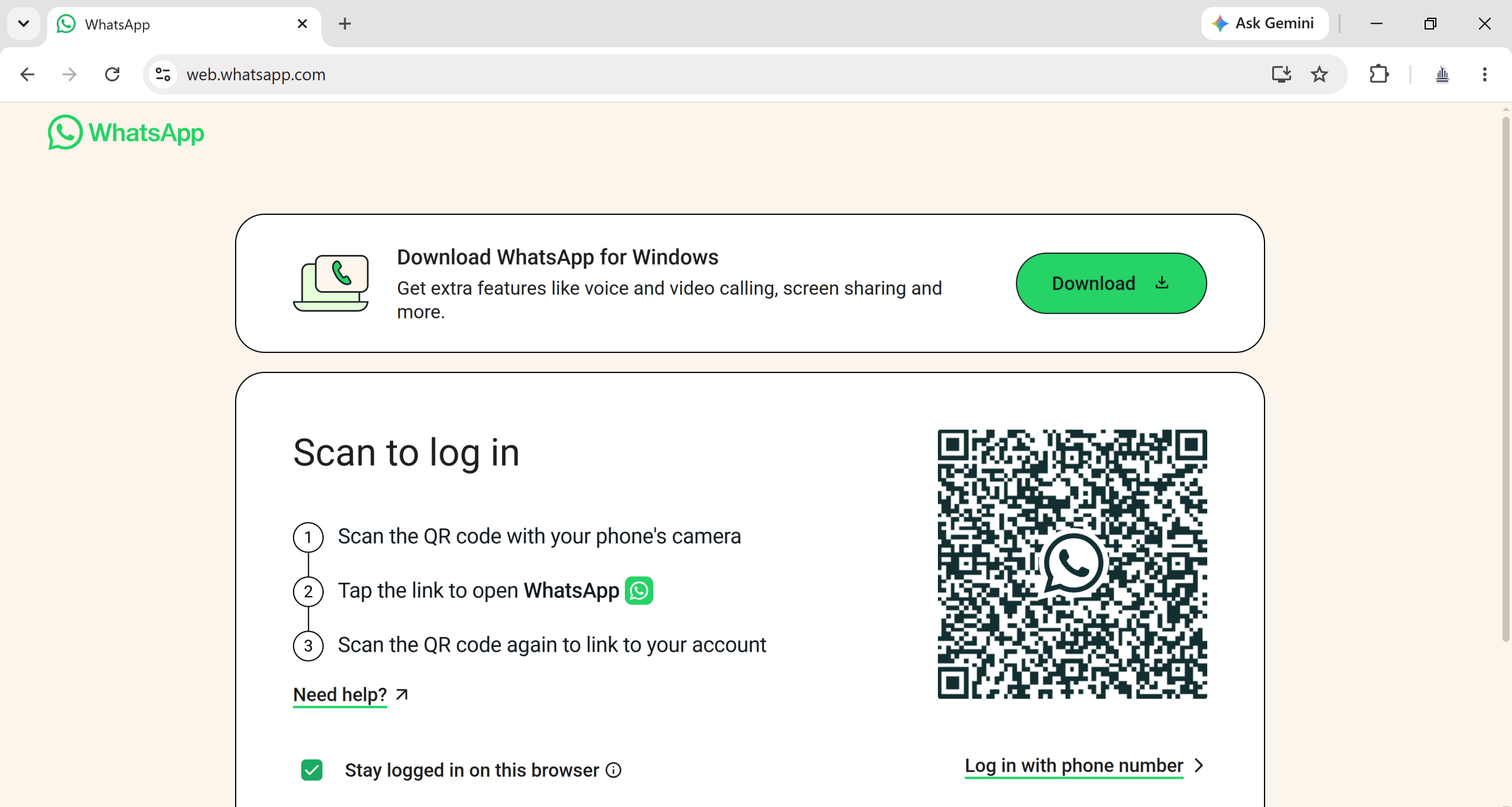
- Open and login WhatsApp Web in your browser
- Scan the QR code using your mobile WhatsApp
- Locate the chat you want to archive
- Hover your mouse over the chat
- Click the down arrow (▾) on the right
- Select “Archive chat”
✅ The chat is instantly moved to the Archived folder
✅ Messages remain safe and readable
✅ Works for both individual and group chats
Shortcut Tip: Press Ctrl + E to archive chats faster on WhatsApp Web.
How to Unarchive Chats on WhatsApp Web
Need a chat back in your main list? Unarchiving is just as easy.
Step-by-Step: Unarchive a Chat
- Click the “Archived” folder at the top of your chat list
- Hover over the chat you want to restore
- Click the down arrow (▾)
- Select “Unarchive chat”
The chat instantly returns to your main chat list without losing any messages.
How to Find Archived Chats on WhatsApp Web
Using the Archived Folder
- The Archived folder is always visible at the top of your chat list
- Click it to view all archived conversations
- You can read, reply, and view media directly
Searching Archived Chats
- Use the search bar at the top
- Type the contact or group name
- WhatsApp Web shows results from both archived and active chats
This ensures you never lose access to important conversations even if they’re archived.
What Happens When You Archive WhatsApp Chats
Changes to Your Chat List
- Archived chats move into a separate folder
- They stay hidden from your main chat list
- New messages do not bring them back automatically
Notifications Behavior
- Notifications for archived chats are muted
- No pop-ups or sound alerts
- Helps reduce distractions and improve focus
Archiving does not delete messages or media. End-to-end encryption remains intact.
What Happens When You Unarchive WhatsApp Chats
Chat Restoration
- The chat moves back to your main chat list
- Appears in the correct order based on recent messages
- Works instantly with no data loss
Notifications Resume
- You start receiving alerts again
- New messages appear like normal chats
- Full message history remains available
How to Manage Archived Chats Efficiently on WhatsApp Web
Smart Chat Organization Tips
- Archive inactive chats weekly
- Keep only active conversations visible
- Use archived chats as a “storage area”
- Search instead of scrolling
Best Practices for Archiving
| Task | Action |
|---|---|
| Hide old chats | Archive |
| Restore chats | Unarchive |
| Find archived chats | Use search or Archived folder |
| Avoid deleting chats | Archive instead |
| Reduce clutter | Review chats weekly |
Archiving is ideal for both personal users and business users who manage high chat volumes.
Boost Productivity with WASheet 🚀
If you manage WhatsApp conversations for business, WASheet helps you go beyond basic chat organization.

Why Use WASheet?
- Send WhatsApp messages directly from your number
- Easy bulk messaging and broadcasts
- Excel & Google Sheets integration
- Faster workflows for sales and support teams
- No WhatsApp API complexity
👉 WASheet makes WhatsApp Web more powerful and productive.
FAQ – Archive and Unarchive Chats on WhatsApp Web
How do I know if a chat is archived?
If the chat appears inside the Archived folder, it is archived.
Can I archive multiple chats at once?
No, WhatsApp Web currently allows archiving one chat at a time.
Will archiving delete messages?
No. All messages, media, and files remain intact.
Do archived chats receive notifications?
No. Notifications are muted until the chat is unarchived.
Can I search archived chats?
Yes. The search bar shows results from both archived and active chats.
Is archiving reversible?
Yes. You can unarchive chats anytime with one click.
Final Thoughts
Archiving and unarchiving chats on WhatsApp Web is one of the simplest yet most powerful features for staying organized. Whether you’re a casual user or managing hundreds of conversations daily, proper chat organization improves efficiency, focus, and productivity.
Combine WhatsApp Web’s archive feature with WASheet, and you unlock a faster, smarter way to manage WhatsApp for business.
👉 Try WASheet today and simplify your WhatsApp workflow.