
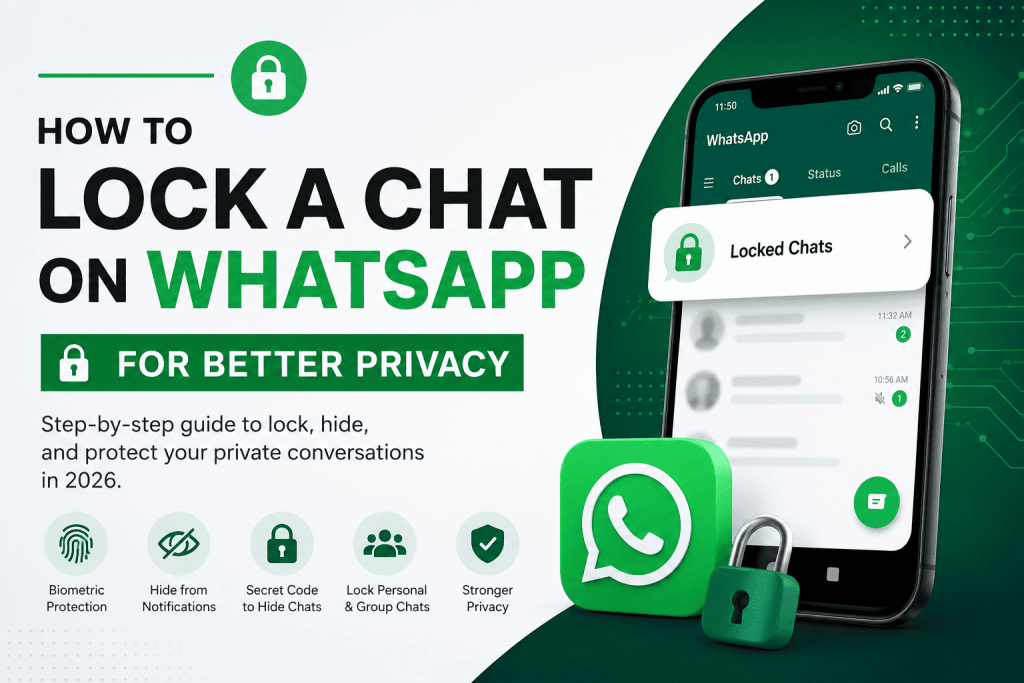
In this guide, you’ll learn how to lock a chat on WhatsApp, how to find and unlock locked conversations, how to hide the Locked Chats folder with a secret code, and which additional WhatsApp privacy settings can help protect your messages.
WhatsApp has become a central part of everyday communication. From personal conversations and family groups to client discussions and business messages, our chats often contain information we would rather keep private.
If someone else occasionally uses your phone, knowing your device passcode may not be enough to protect sensitive WhatsApp conversations. That’s where WhatsApp Chat Lock comes in.
Chat Lock lets you move selected conversations into a protected area that can only be opened after authentication. Depending on your device and settings, you can use biometric authentication such as a fingerprint or Face ID, your device passcode, or a secret code to access protected chats.
Important: WhatsApp regularly updates its interface and privacy features. Menu names and steps can vary slightly depending on your Android or iPhone model and the version of WhatsApp installed.
Key Takeaways
- WhatsApp Chat Lock adds an extra layer of privacy to individual and group conversations.
- Locked chats are separated from your regular chat list and require authentication to open.
- Chat Lock can protect sensitive personal, family, work, and business conversations.
- Notifications from locked chats are designed to avoid revealing the contents of incoming messages.
- You can use a Secret Code to make your Locked Chats folder harder to discover.
- Locked chats and the Secret Code feature are primarily designed for WhatsApp mobile apps.
- Chat Lock is different from WhatsApp’s App Lock feature, which protects access to the entire application.
- For the strongest privacy, combine Chat Lock with your phone’s screen lock and WhatsApp’s other privacy controls.
What Is WhatsApp Chat Lock?
WhatsApp Chat Lock is a privacy feature that lets you protect specific conversations separately from the rest of your WhatsApp account.
When you lock a conversation, WhatsApp moves it out of your normal chat list and places it inside a protected Locked Chats section. Access to that section requires authentication.
This means that even if someone opens WhatsApp on your unlocked phone, your protected conversations aren’t immediately visible in your regular inbox.
Chat Lock can be useful for:
- Private conversations
- Personal relationships
- Family discussions
- Sensitive business communications
- Client conversations
- Financial or work-related information
- Conversations containing confidential details
The feature is especially useful when you want to protect specific chats without locking the entire WhatsApp application.
Chat Lock vs. WhatsApp App Lock
These two privacy features serve different purposes.
Chat Lock protects selected conversations.
App Lock protects access to WhatsApp as a whole.
For example, if you want to keep one particular client conversation private, Chat Lock may be sufficient. If you want to prevent anyone from opening WhatsApp at all, an app-level lock is more appropriate.
Using both can provide an additional layer of protection.
What Happens When You Lock a WhatsApp Chat?
After you enable Chat Lock for a conversation, several things change:
- The conversation is removed from your standard chat list.
- The chat is placed inside the Locked Chats area.
- Authentication is required before you can open it.
- The contents of messages from locked chats are protected from being displayed openly in notifications.
- The locked conversation is separated from your regular WhatsApp inbox.
Your messages, photos, videos, documents, and other chat content aren’t deleted when you enable Chat Lock. The feature is designed to control access to the conversation rather than remove its contents.
Chat Lock also works for group chats, making it possible to protect both individual and group conversations.
How to Lock a Chat on WhatsApp
The exact interface can change between WhatsApp versions, but the general process is straightforward.
How to Lock a WhatsApp Chat on Android
Follow these steps to lock a private conversation on most current Android versions of WhatsApp:
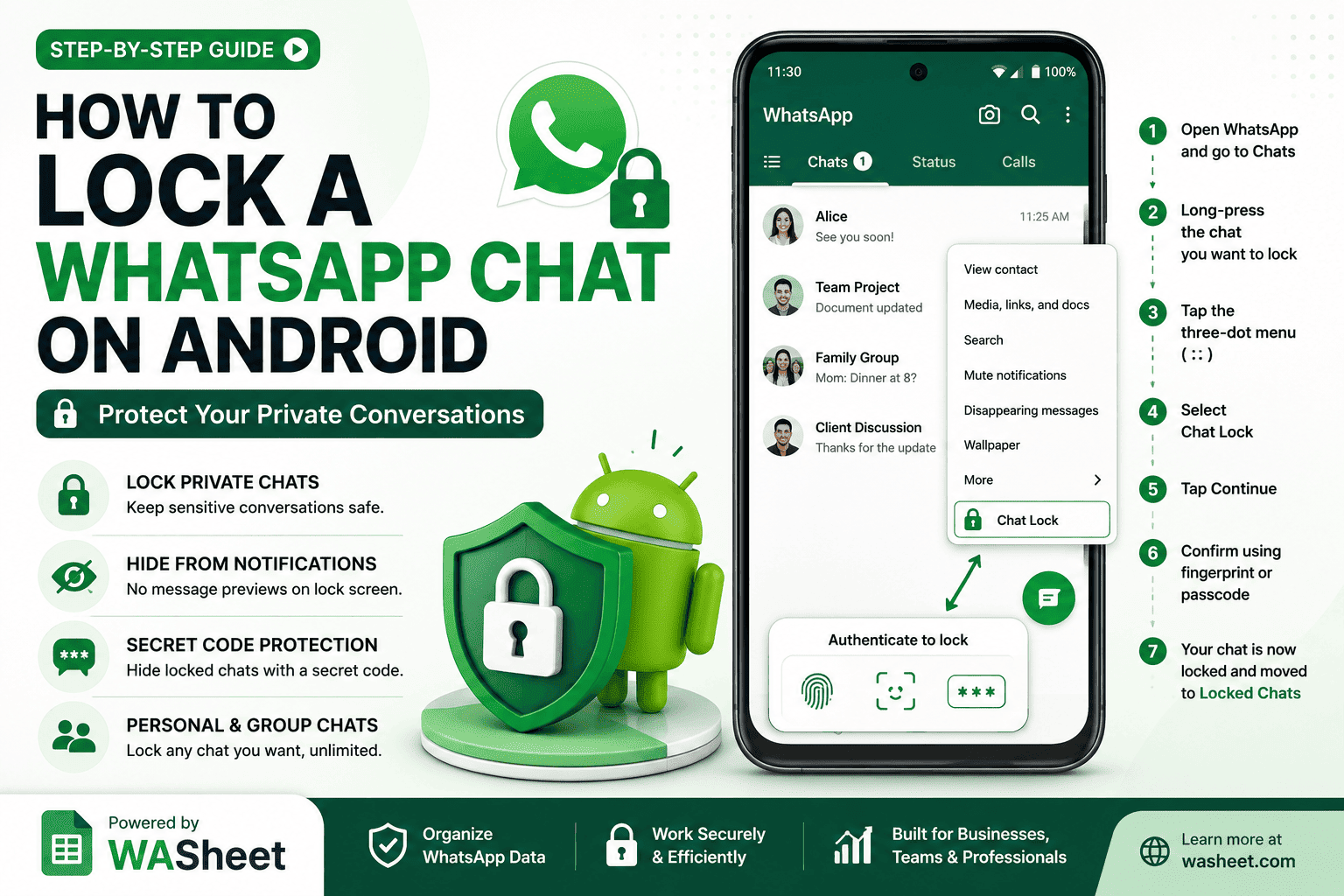
- Open WhatsApp on your Android phone.
- Go to the Chats tab.
- Find the individual or group chat you want to protect.
- Open the chat and tap the contact or group name at the top.
- Look for the Chat Lock option.
- Turn on the option to lock the conversation.
- Confirm your identity using the authentication method available on your device.
Depending on your Android phone, authentication may involve your fingerprint, device passcode, or another supported security method.
Once the process is complete, the conversation will no longer appear in your normal chat list. It will be moved to your protected Locked Chats area.
Quick Tip
If you don’t see the Chat Lock option, make sure you’re using the latest version of WhatsApp available for your device. Also check that your phone has a secure screen lock configured.
How to Lock a WhatsApp Chat on iPhone
iPhone users can also protect individual and group conversations with Chat Lock.
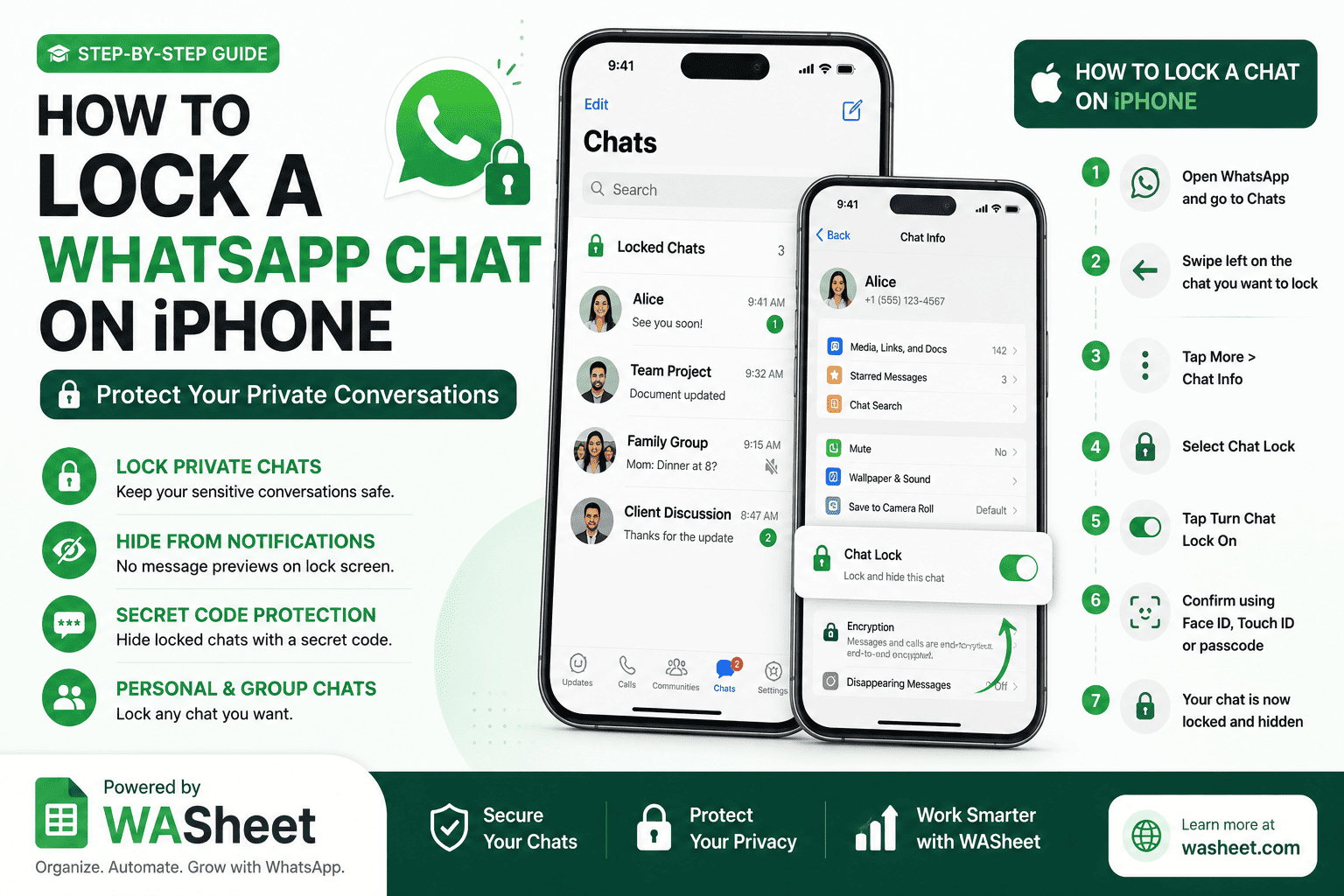
Here’s the general process:
- Open WhatsApp on your iPhone.
- Go to your Chats list.
- Open the conversation you want to protect.
- Tap the name of the contact or group at the top of the screen.
- Select Chat Lock.
- Turn on the option to lock the chat.
- Authenticate using Face ID, Touch ID, or your device passcode, depending on your iPhone model and security settings.
After authentication, the conversation is moved out of your regular chat list and placed in the Locked Chats section.
The process is similar whether you’re protecting a personal conversation or a group chat.
How to Find Locked Chats on WhatsApp
Once you’ve locked a conversation, you may wonder where it went.
Your protected conversations are stored in the Locked Chats section.
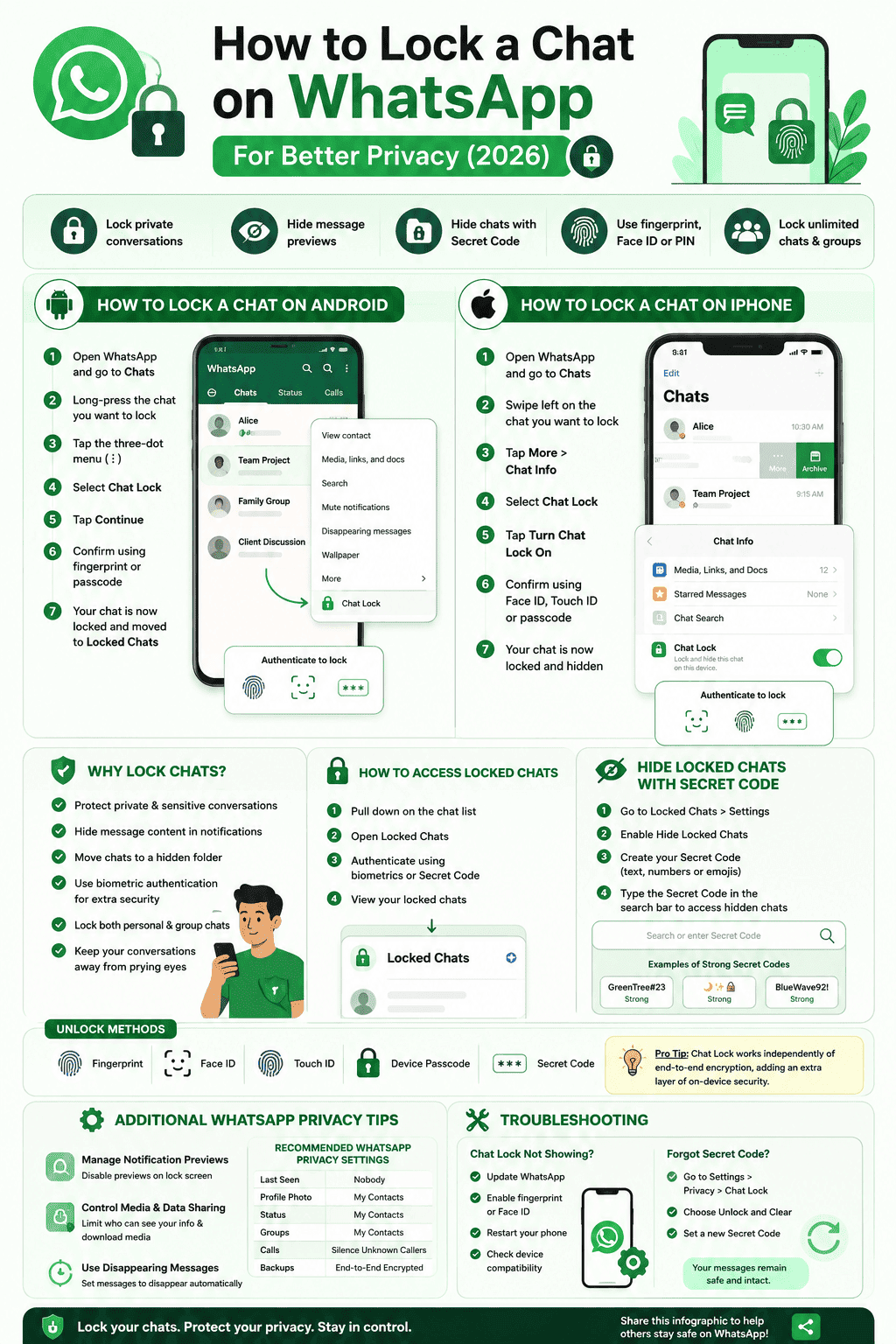
To access them:
- Open WhatsApp.
- Go to the main Chats screen.
- Pull down on the chat list to reveal the Locked Chats section.
- Tap Locked Chats.
- Authenticate using your configured security method.
- Select the conversation you want to open.
Your locked conversations will then be accessible inside the protected area.
If you’ve enabled the Secret Code feature to hide Locked Chats, the process is different.
How to Hide Locked Chats With a Secret Code
WhatsApp’s Secret Code feature provides an additional privacy option for people who don’t want the Locked Chats folder to be visible in the regular WhatsApp interface.
When you enable this feature, your locked conversations can be hidden from the normal chat list. You can then access them by entering your chosen secret code in WhatsApp’s search field.
This can be useful if you want to make it less obvious that you have protected conversations on your account.
How to Set Up a Secret Code for Locked Chats
The exact menu location may vary slightly by WhatsApp version, but the process generally involves:
- Open WhatsApp.
- Access your Locked Chats section.
- Authenticate to open your protected conversations.
- Open the settings for Locked Chats.
- Find the option related to Secret Code or hiding locked chats.
- Create a unique secret code.
- Confirm the code and enable the option to hide your Locked Chats.
After the feature is enabled, your Locked Chats folder can be hidden from the regular chat list.
To access hidden locked chats, enter your secret code into the WhatsApp search field.
Choose a Strong Secret Code
Avoid using information that someone could easily guess, such as:
- Your birthday
- Your name
- Your phone number
- A common password
- A simple sequence of numbers
A unique code that isn’t used elsewhere is a better choice.
How to Access Hidden Locked Chats
If you’ve hidden the Locked Chats folder using a Secret Code, you won’t necessarily see the folder by simply scrolling through your conversations.
Instead:
- Open WhatsApp.
- Go to the Chats screen.
- Tap the search field.
- Enter your Secret Code.
- Access the locked conversations that appear.
- Authenticate if WhatsApp requests additional verification.
This gives you another layer of privacy because the existence of your locked conversations is less obvious to someone casually looking through your WhatsApp inbox.
How to Unlock a WhatsApp Chat
If you no longer want a conversation protected by Chat Lock, you can remove the lock.
The general process is:
- Open WhatsApp.
- Go to Locked Chats.
- Authenticate to access your conversations.
- Open the chat you want to unlock.
- Open the chat information or settings.
- Select the option to turn off Chat Lock.
- Authenticate again if requested.
The conversation will return to your regular chat list.
Unlocking a conversation doesn’t delete your messages or media. It simply removes the additional Chat Lock protection.
Can You Lock Group Chats on WhatsApp?
Yes.
WhatsApp Chat Lock can be used to protect both individual chats and group conversations.
This is particularly useful if you’re part of groups that contain sensitive discussions, work information, private plans, or other content you don’t want visible to anyone who happens to access your phone.
The process for locking a group chat is generally the same as locking an individual conversation: open the group information, find Chat Lock, and enable the feature.
Are Notifications From Locked Chats Hidden?
One of the privacy benefits of Chat Lock is that WhatsApp is designed not to expose the contents of messages from protected conversations in ordinary notification previews.
This can help prevent someone looking at your phone’s lock screen or notification panel from immediately reading a private message.
However, notification behavior can also depend on your phone’s operating system and notification settings.
For additional privacy, consider reviewing your phone’s notification preview settings and deciding whether message content should appear on the lock screen.
WhatsApp Chat Lock vs. App Lock: What’s the Difference?
It’s easy to confuse these two features, but they protect different things.
| Feature | What It Protects |
|---|---|
| Chat Lock | Selected individual or group conversations |
| Secret Code | Helps hide the Locked Chats area |
| App Lock | Access to the entire WhatsApp application |
| Device Screen Lock | Access to your entire phone |
If your goal is to protect one or two sensitive conversations, Chat Lock is a useful option.
If you want to prevent someone from opening WhatsApp altogether, consider using the app-level security options available on your device and WhatsApp.
For maximum privacy, your phone should always have a strong screen lock enabled.
What to Do If WhatsApp Chat Lock Is Missing
Can’t find the Chat Lock option? Try these troubleshooting steps.
1. Update WhatsApp
Open the Google Play Store or Apple App Store and check whether a newer WhatsApp version is available.
New privacy features and interface changes may require a recent version of the app.
2. Check Your Phone’s Security Settings
Make sure your device has a secure screen lock configured.
Depending on your phone, this could include:
- Fingerprint authentication
- Face authentication
- PIN
- Password
- Pattern
3. Restart WhatsApp
Close the application completely and reopen it.
If necessary, restart your phone and check again.
4. Check the Chat Information Screen
The Chat Lock option may not appear in the exact location you expect. Open the conversation and tap the contact or group name to view the available privacy and security options.
5. Make Sure You’re Looking for the Right Feature
WhatsApp has several privacy and security controls. If you’re trying to protect a specific conversation, look for Chat Lock rather than App Lock.
What Happens to Locked Chats When You Receive New Messages?
Locking a conversation doesn’t stop people from sending you messages.
The chat remains active, and you can continue to:
- Send messages
- Receive messages
- Share photos and videos
- Send documents
- Make calls
- Participate in group conversations
The main difference is that the conversation is protected and separated from your regular chat list.
Does Chat Lock Delete or Hide Old Messages?
No.
Enabling Chat Lock doesn’t delete your conversation history.
Your existing messages and media remain in the chat. The feature changes how the conversation is accessed and displayed within WhatsApp.
When you unlock the conversation, your chat history remains available as before.
Does WhatsApp Chat Lock Work on WhatsApp Web?
Chat Lock is primarily a mobile privacy feature, and the experience on linked devices may differ from the main WhatsApp app.
WhatsApp continues to evolve its support for privacy features across devices, so users who rely heavily on WhatsApp Web or other linked devices should check the latest WhatsApp documentation and app version for current functionality.
For the strongest protection, keep your primary phone secure and use a strong device passcode.
WhatsApp Privacy Settings You Should Review
Chat Lock is only one part of protecting your privacy on WhatsApp.
For better overall privacy, review the following settings.
Control Who Can See Your Last Seen and Online Status
WhatsApp lets you control who can see information about when you’re online and when you were last active.
If privacy is a priority, consider limiting this information to your contacts or using the most restrictive settings that fit your needs.
Review Profile Photo Visibility
Your profile photo can reveal personal information. Review who is allowed to see it and choose a setting that matches your privacy preferences.
Control Your Status Updates
WhatsApp Status lets you share temporary updates with selected audiences. Review your Status privacy settings regularly, especially if you use WhatsApp for both personal and professional communication.
Silence Unknown Callers
If you receive unwanted calls from unknown numbers, WhatsApp offers privacy controls designed to help reduce interruptions from unknown callers.
Use Disappearing Messages
For conversations where you don’t need a permanent message history, disappearing messages can provide an additional privacy layer.
Keep in mind that disappearing messages aren’t a replacement for Chat Lock or encryption and shouldn’t be treated as a guarantee that content cannot be saved or copied.
Enable End-to-End Encrypted Backups
WhatsApp messages are protected by end-to-end encryption during communication, but backups are a separate consideration.
If you use WhatsApp backups, review the available backup privacy options and consider enabling end-to-end encrypted backups where available.
Best WhatsApp Privacy Practices
For stronger protection of private conversations, follow these habits:
Use a Strong Phone Passcode
Your phone’s screen lock is your first line of defense. Avoid easy-to-guess PINs and passwords.
Enable Biometric Authentication
Fingerprint or Face ID authentication can make it easier to protect your phone and WhatsApp while maintaining convenient access.
Lock Sensitive Chats Individually
Use Chat Lock for conversations that contain information you don’t want visible in your standard chat list.
Consider a Secret Code
If simply having a Locked Chats folder visible is a concern, consider using the Secret Code feature to hide it.
Review Notification Previews
Even with Chat Lock, review your device’s notification settings to minimize the amount of private information displayed on your lock screen.
Keep WhatsApp Updated
Privacy and security features evolve over time. Keeping WhatsApp updated ensures you’re using the latest version available for your device.
Be Careful With Linked Devices
Regularly review the devices linked to your WhatsApp account. Remove any device you no longer recognize or use.
Protect Your Backup
Consider enabling end-to-end encrypted backups if the feature is available to you.
Frequently Asked Questions About WhatsApp Chat Lock
How many WhatsApp chats can I lock?
WhatsApp allows you to protect multiple individual and group conversations with Chat Lock. You aren’t limited to locking just one conversation.
Can I lock a WhatsApp group chat?
Yes. Chat Lock can be used with supported individual and group conversations.
Can I hide my Locked Chats folder?
Yes. WhatsApp’s Secret Code feature allows you to hide the Locked Chats folder and access protected conversations through your chosen secret code.
Can someone see a message preview from a locked chat?
Chat Lock is designed to protect the contents of notifications from locked conversations. For additional privacy, you should also review your phone’s lock-screen notification settings.
Can I unlock a locked WhatsApp chat?
Yes. You can remove Chat Lock from a protected conversation through the chat’s settings after authenticating.
Does locking a chat delete the conversation?
No. Chat Lock doesn’t delete your messages or media. It adds an access restriction to the conversation.
Can I lock chats on WhatsApp Web?
Chat Lock is primarily designed around WhatsApp’s mobile experience. Features and behavior on linked devices can change as WhatsApp updates its platform, so check the latest version of WhatsApp for your specific setup.
What if I forget my Secret Code?
If you forget your Secret Code, use the recovery or reset options provided within WhatsApp’s Chat Lock settings. Be aware that resetting privacy settings may affect how your hidden locked chats are accessed.
Final Thoughts: Is WhatsApp Chat Lock Worth Using?
If you regularly keep sensitive conversations on WhatsApp, Chat Lock is a practical privacy feature worth using.
It gives you more control over which conversations appear in your regular inbox and adds an authentication barrier around chats that you consider private. The Secret Code option can go a step further by hiding the Locked Chats folder from view.
However, Chat Lock shouldn’t be considered your only privacy measure.
The best approach is to combine WhatsApp Chat Lock, a strong phone passcode, biometric authentication, secure notification settings, careful linked-device management, and WhatsApp’s broader privacy controls.
Also Read: Top Message Templates to Request WhatsApp Unban
In other words, protecting your WhatsApp privacy isn’t about relying on one setting. It’s about creating multiple layers of protection around your conversations and your device.
If you haven’t reviewed your WhatsApp privacy settings recently, now is a good time to do it. A few minutes of configuration can make a significant difference in keeping your personal and professional conversations private.
Protect Your WhatsApp Data with WASheet
If you use WhatsApp for business, sales, customer communication, or team workflows, privacy is only one part of managing your messaging data.
WASheet helps professionals organize and work with WhatsApp-related data more efficiently, making it useful for businesses and teams that need better control over their communication workflows.

Whether you’re managing customer conversations or organizing business messaging data, combining good operational practices with strong privacy habits can help you work more securely and efficiently.