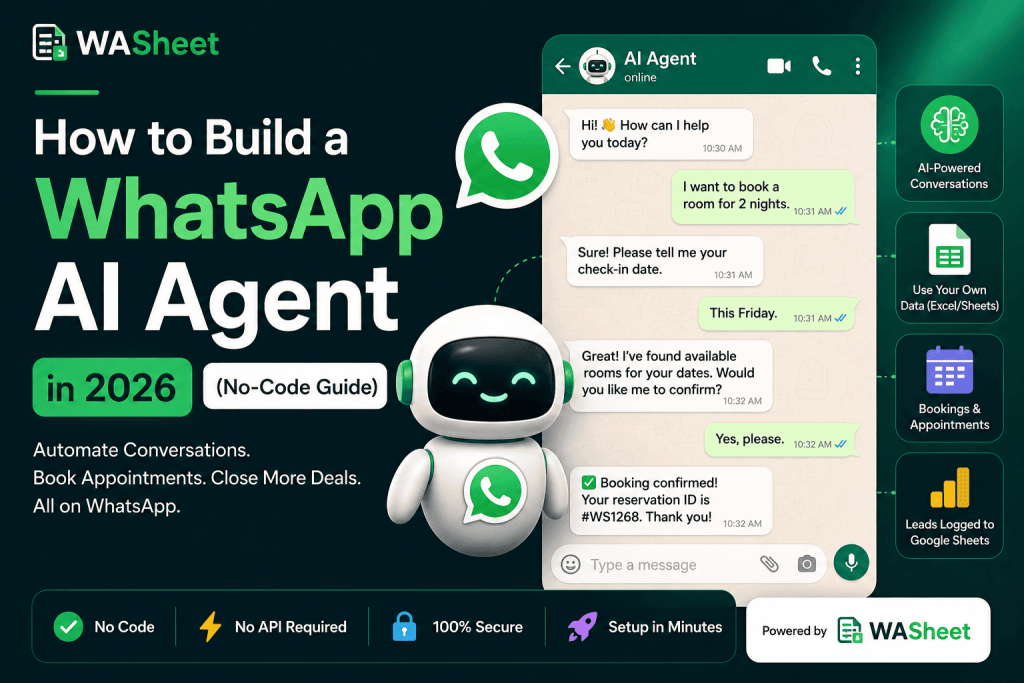
A WhatsApp AI agent handles orders, bookings, and support automatically. Here’s what it is, how it works, and how to set one up in minutes with WASheet no developer needed
A WhatsApp AI agent is software that uses a large language model (like Claude or GPT) to have real, natural conversations with your customers on WhatsApp answering questions, taking orders, booking appointments, and logging every lead without a person typing a single reply. You don’t need the WhatsApp Business API or a developer to get one running. A free browser extension called WASheet connects directly to WhatsApp Web, lets you plug in an AI provider, and turns it into an agent in a few minutes.
If you’ve been putting off “AI for WhatsApp” because it sounded like a six-week dev project, that’s genuinely not true anymore. This guide walks through what changed, what an AI agent actually does differently from a chatbot, and exactly how to build one today.
What Is a WhatsApp AI Agent?
A WhatsApp AI agent is an automated assistant that lives inside your WhatsApp chats and holds full conversations on your behalf. Unlike the old-style chatbot the kind that makes you tap “1 for Sales, 2 for Support” an AI agent understands typed, natural language. A customer can ask something oddly phrased, in Urdu one message and English the next, and the agent still follows along.
Under the hood, it’s usually one of the big language models Claude from Anthropic or a GPT model from OpenAI reading the conversation, checking your business information, and deciding what to say next. Give it your price list or your appointment calendar, and it stops sounding generic and starts sounding like someone who actually works at your business.
That’s really the shift worth paying attention to conversational AI replacing decision-tree automation. One reacts to keywords. The other understands intent.
Why WhatsApp AI Agents Became Realistic for Small Businesses
A couple of years ago, this kind of setup meant applying for WhatsApp Business API access, going through a Business Solution Provider, and paying a developer to wire it all together. For a solo restaurant owner or a two-chair salon, that was never happening.
Three things changed that:
Browser extensions replaced platforms: Tools now sit directly on top of WhatsApp Web instead of asking you to migrate your number to a separate system. No API application, no approval waits.
The underlying models got good enough: Claude and GPT-class models handle multi-turn, business-specific conversations collecting a name, a date, a service, confirming it back with far fewer of the “I didn’t understand that” dead ends that plagued earlier bots.
You can hand the AI your own data: Upload a spreadsheet of your menu, your room rates, or your class schedule, and the agent references it live instead of guessing. That’s the difference between a toy and a tool.
Put together, what used to be an enterprise-only capability is now something you can turn on before lunch.
WASheet: A No-Code Way to Run a WhatsApp AI Agent
WASheet is a free Chrome and Edge extension that adds this whole layer on top of your existing WhatsApp Web no separate app to log into, no phone number migration, no WhatsApp Business API required.
Watch the below video to learn how to build a whatsapp ai agent with WASheet in just 60 Secs just by uploading data file:
Inside the extension, alongside bulk messaging and a WhatsApp-to-Google-Sheets sync, there’s an Agentic AI Workflows section where you connect an AI provider (Claude or OpenAI), upload a file describing your business, and write a short prompt describing how the agent should behave. From there, it runs the conversation start to finish and pings a WhatsApp number of your choice every time it closes a booking, order, or lead.
It’s the kind of setup people researching “how to build a WhatsApp AI agent” tend to land on, mainly because it skips the two most painful parts of the old process: the API application and the developer bill.
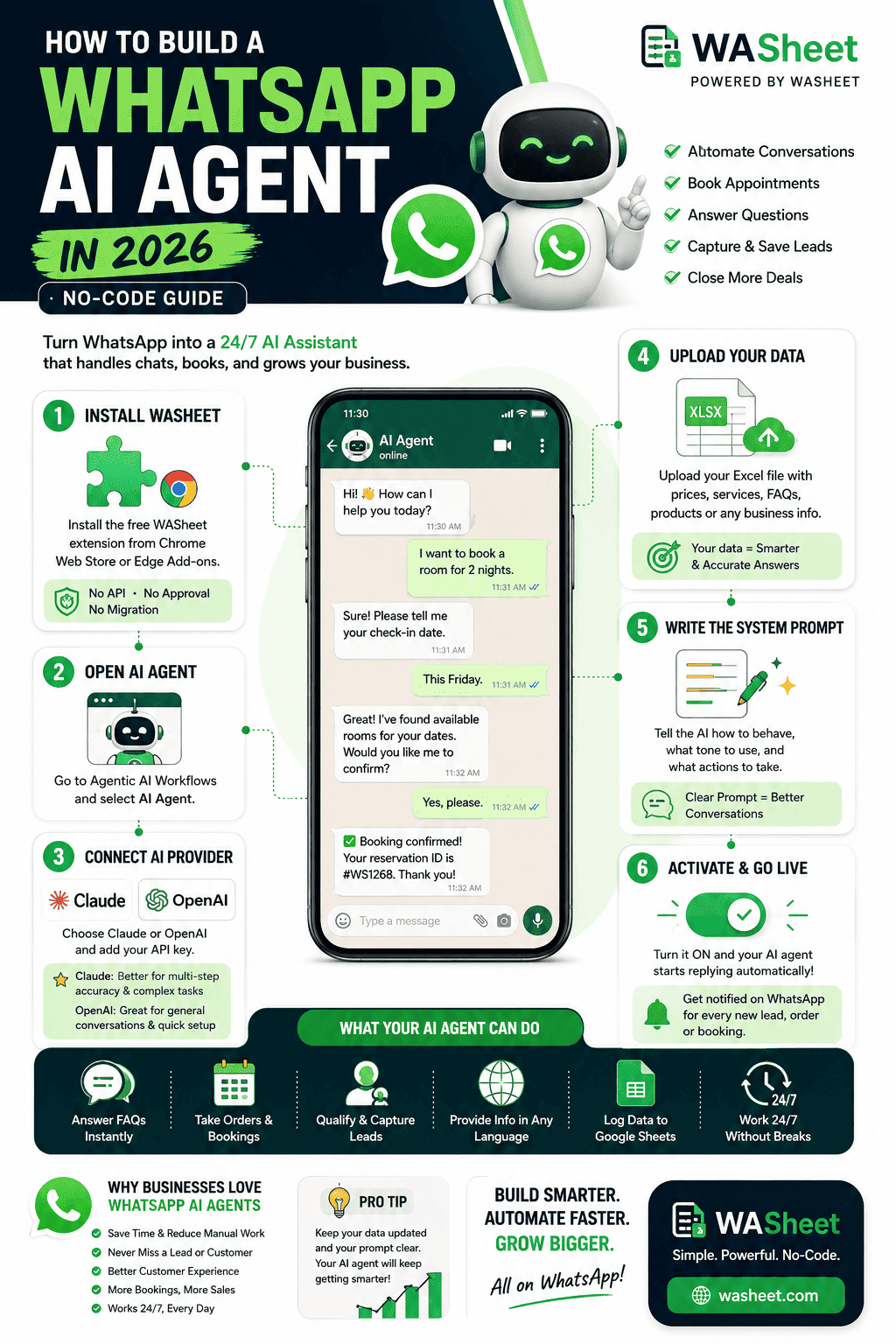
WhatsApp AI Agent Setup Guide with WASheet (Step-by-Step)
Here’s the full process, start to finish.
1. Install the extension
Go to washeet.com and click Install for Free. It’ll take you to the Chrome Web Store (or Edge Add-ons), where you add it like any other extension. Open and login WhatsApp Web, sign in with the Gmail account tied to WASheet, and the panel appears inside your WhatsApp Web screen. Nothing to pay, nothing to apply for.
A couple of practical notes: Edge tends to run WASheet a little more smoothly, and if you’re on an iPhone, link WhatsApp Business rather than the personal app for full compatibility.
2. Open Agentic AI Workflows → AI Agent
Inside the WASheet panel, find Agentic AI Workflows, open it, and select AI Agent. This is the configuration screen where the actual agent gets built.
3. Connect Claude or OpenAI
You’ll be asked to pick an AI provider and paste in an API key from that provider’s website.
- Claude tends to be the stronger pick when the conversation has several steps that need to happen in order booking flows, structured intake forms, anything where precision matters more than flair.
- OpenAI’s GPT models are a solid, widely used option for general customer conversation and are quick to set up if you already have a key.
Either works well; the right choice mostly comes down to which one you already use or trust more.
4. Upload your business data
This step is what actually makes the agent useful instead of generic. Upload an Excel file with the information your agent needs to answer questions accurately and what goes in it depends entirely on what you do:
- Clinics: doctors, available slots, treatments, fees
- Restaurants: menu, prices, allergens, delivery zones
- Hotels: room types, rates, availability, check-in times
- Gyms: class schedule, trainers, membership tiers
- Online stores: product catalog, stock, shipping timelines
- Law firms: practice areas, consultation slots, fee structure
- Salons: services, stylist availability, package pricing
The agent reads this live during conversations, so answers stay accurate instead of made up.
5. Write the agent’s instructions
This is the part worth slowing down for the quality of your prompt is the single biggest factor in how good the agent actually sounds. A solid prompt covers six things:
- Who you are — business name, type, city, hours, key policies
- What the agent’s job is — booking appointments, taking orders, qualifying leads
- The order of the conversation — greet, ask for X, check availability, confirm
- What data to collect — name, number, date, service, notes
- Tone and language — formal or casual, and which languages to detect and reply in
- What to do when it doesn’t know something — a fallback line pointing the customer to a real human
A vague prompt produces a vague agent. A specific one produces something that reads like a trained team member. Read this detail Guide to write perfect prompt: WASheet Agentic AI Prompt Sample – How to Write a Perfect Prompt
Example, for a restaurant:
“You’re a friendly order-taking assistant for [Restaurant Name], serving [cuisine] in [City], open 12 PM–11 PM daily. Ask whether the order is dine-in, takeaway, or delivery, then walk the customer through the uploaded menu. Collect their name, number, and address if it’s delivery. Confirm the order total and estimated time before ending the chat.”
6. Set an admin notification number
Add your own WhatsApp number (or a teammate’s) so that every time the agent finishes an interaction — a booked slot, a placed order, a captured lead it sends a structured summary straight to that chat. It’s a lightweight way to keep tabs on what’s happening without watching WhatsApp Web all day.
7. Start the agent
Click Start Agent. From that point, anyone messaging your WhatsApp number gets handled by the AI, and you get notified when something closes. Click Stop Agent any time you want to pause it.
Managing what the agent collects
Everything the agent gathers bookings, orders, leads lands in WASheet’s notification dashboard (the bell icon). You can review it as a table, edit or delete entries, and export the whole thing as CSV, PDF, or HTML whenever you need it elsewhere.
WhatsApp AI Agent vs. Traditional Chatbot
| Traditional Chatbot | WhatsApp AI Agent (WASheet) | |
|---|---|---|
| How it talks | Fixed menus, button taps | Open, natural conversation |
| Knows your business | No | Reads your uploaded data |
| Powered by | Rule-based scripts | Claude / GPT (LLMs) |
| Setup | Developer + API access | Free browser extension |
| Alerts | Manual checking | Automatic WhatsApp notifications |
| Exporting data | Usually needs a CRM | Built-in CSV/PDF/HTML export |
| Typical cost | Ongoing monthly fee | Free to start |
Who Actually Uses This
- A dental clinic lets the agent check the doctor’s calendar and book patients overnight, with the front desk waking up to a summary instead of a voicemail pile.
- A restaurant has customers browse the menu and place delivery orders directly in chat, with totals and timing confirmed automatically.
- A gym lets members check class availability and reserve a spot, with the manager notified the moment a class fills.
- An online store answers stock questions and walks a shopper through checkout, alerting fulfillment the second an order lands.
- A law firm has the agent take an initial case description, check consultation slots, and hand the lawyer a clean brief before the first call.
Same underlying setup each time just a different spreadsheet and a different prompt.
Frequently Asked Questions
What is a WhatsApp AI agent?
It’s an AI-powered assistant, usually built on a model like Claude or GPT, that handles WhatsApp conversations end-to-end understanding what a customer wants, checking your business data, and completing the interaction (a booking, an order, a lead) without a person involved.
Can I build one for free?
Yes. WASheet’s extension is free to install and use. You’ll need an API key from Claude or OpenAI to power the conversations, which you get directly from their sites some plans include free usage tiers to start with.
Do I need the WhatsApp Business API?
No. That’s the main thing WASheet skips. It runs inside WhatsApp Web as a browser extension, so there’s no API application or BSP approval to wait on.
Which AI model should I use Claude or GPT?
Claude tends to hold up better on longer, multi-step flows like appointment booking. GPT is a strong general-purpose option and quick to set up if you already have a key. Either connects the same way inside WASheet.
What kind of business data can I upload?
Any Excel file describing what you offer a menu, a price list, a class schedule, a room-availability sheet, a product catalog. The agent references it live so its answers stay specific to your business instead of generic.
How long does setup actually take?
Installing the extension, connecting an API key, and uploading a file takes a few minutes. Writing a genuinely good prompt is the part worth spending real time on often 15–20 minutes the first time, less once you’ve done it once.
Can it handle more than one language?
Yes, if you tell it to. Include an instruction in the prompt to detect the customer’s language and reply in kind Claude and GPT both handle multilingual conversation well.
Where does the collected data go?
Into WASheet’s built-in notification dashboard, where you can view, edit, delete, or export everything as CSV, PDF, or HTML no separate CRM subscription required.
What happens when the agent doesn’t know the answer?
Whatever you told it to do in the fallback part of the prompt typically something like apologizing and pointing the customer to a phone number or email for a human follow-up.
Is it secure?
WASheet runs as a browser extension inside your own WhatsApp Web session; conversations are processed by whichever AI provider you connect (Claude or OpenAI) under their own data terms. Worth reading both WASheet’s privacy policy and your chosen provider’s terms before going live.
Where to Start
The gap between a business with a WhatsApp AI agent and one still typing replies manually is mostly just time a few minutes to install, a little more to write a prompt worth using. Everything else, the model, the data-reading, the notifications, is handled.
If you want to try it yourself, WASheet is free to install and doesn’t ask for a card to get started.