
Updating your WhatsApp profile picture is one of the easiest ways to refresh your account and help people recognize you. Whether you use WhatsApp for personal conversations, customer support, or business communication, your profile photo often called your WhatsApp DP is one of the first things people notice.
You can change your WhatsApp profile picture from an Android phone, iPhone, WhatsApp Web, or the WhatsApp Desktop app. You can also control who can see your profile photo through WhatsApp’s privacy settings.
In this guide, you’ll learn how to change your WhatsApp profile picture, how to update your WhatsApp DP, how to control profile photo visibility, what to do when your picture is blurry or won’t update, and how to choose a professional profile image.
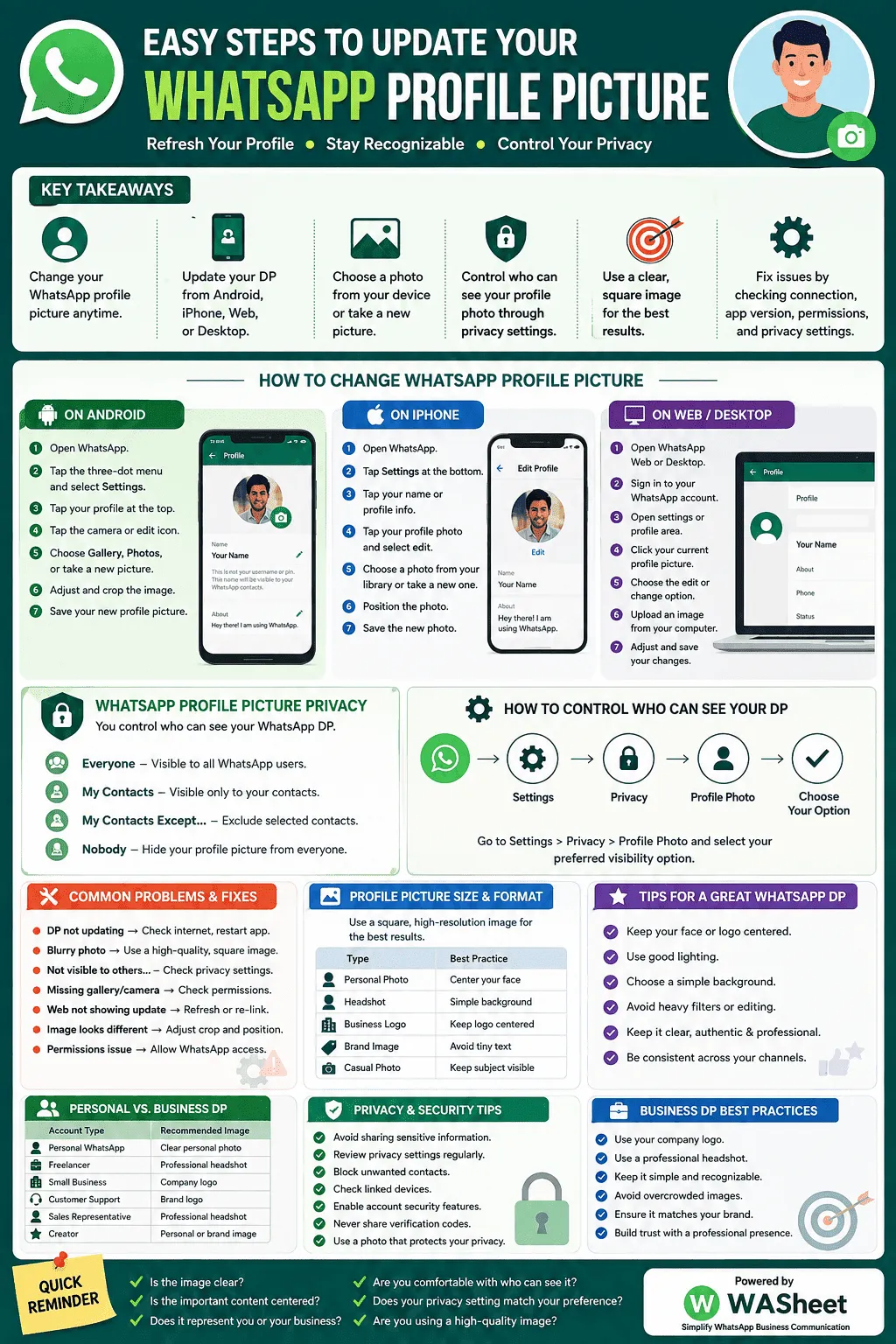
Key Takeaways
- You can change your WhatsApp profile picture whenever you want.
- Your WhatsApp DP can be updated from Android, iPhone, Web, or Desktop.
- You can choose a photo from your device or take a new picture.
- WhatsApp lets you control who can see your profile photo through privacy settings.
- A clear, square image generally works best for a WhatsApp profile picture.
- If your profile photo is blurry or does not update, check your connection, app version, permissions, and privacy settings.
- Businesses can use a professional headshot or company logo to create a more recognizable WhatsApp presence.
- Avoid sharing sensitive information in your profile photo if privacy is important to you.
How to Change Your WhatsApp Profile Picture
Your WhatsApp profile picture appears next to your name in chats, contact lists, and other areas of WhatsApp where your profile information is displayed.
Changing your profile photo is useful when you want to:
- Upload a newer photo.
- Use a professional headshot.
- Add a business logo.
- Refresh your WhatsApp DP.
- Remove an old picture.
- Choose a photo that better represents you or your brand.
The exact buttons can vary slightly depending on your device and WhatsApp version, but the overall process is straightforward.
How to Change WhatsApp Profile Picture on Android
If you’re using an Android phone, you can update your WhatsApp profile photo directly from the app.
Step 1: Open WhatsApp
Open WhatsApp on your Android smartphone.
Step 2: Open Settings
Tap the three-dot menu in the upper-right corner and select Settings.
Step 3: Open Your Profile
Tap your current profile picture, name, or profile area at the top of the Settings screen.
Step 4: Edit Your Profile Photo
Tap the camera or edit icon associated with your current profile picture.
Step 5: Choose a Photo
Select an option such as Gallery, Photos, or the equivalent option shown on your device.
You can also choose the camera option if you want to take a new picture.
Step 6: Adjust the Image
Select the photo you want to use and adjust its position or crop so that the important part of the image is visible.
Remember that profile photos are displayed in a compact, usually circular presentation, so keep faces, logos, and other important details near the center.
Step 7: Save Your WhatsApp DP
Confirm your selection to save the new profile picture.
Your updated WhatsApp profile photo should then appear on your account.
Quick Tip
If you are wondering how to set a WhatsApp profile picture from your gallery, simply choose the gallery or photo-library option when WhatsApp asks where you want to select the image.
How to Change WhatsApp Profile Picture on iPhone
Changing your WhatsApp DP on an iPhone is also quick.
Step 1: Open WhatsApp
Open WhatsApp on your iPhone.
Step 2: Go to Settings
Tap Settings in the bottom navigation.
Step 3: Open Your Profile
Tap your name or profile information at the top.
Step 4: Edit Your Profile Picture
Tap your current profile photo and select the camera or edit option.
Step 5: Select or Take a Photo
Choose a photo from your iPhone’s photo library, or use the camera to take a new picture.
Step 6: Position the Photo
Adjust the image so your face, logo, or other important content is properly positioned.
Step 7: Save the New Photo
Confirm the change to update your WhatsApp profile picture.
That’s it. Your new WhatsApp profile photo is now associated with your account.
How to Change WhatsApp Profile Picture on WhatsApp Web/Desktop
If you regularly use WhatsApp on a computer, you can also manage your profile information from WhatsApp Web or the Desktop app.
Step 1: Open WhatsApp Web or Desktop
Login WhatsApp Web in your browser or launch the WhatsApp Desktop application.
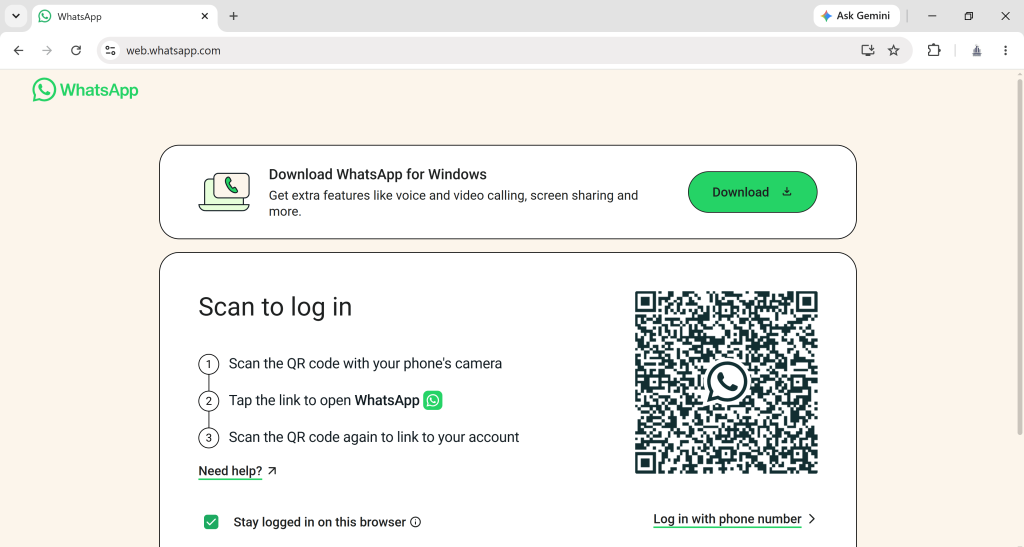
Step 2: Sign In
If necessary, link your computer to your WhatsApp account using the QR-code login process.
Step 3: Open Your Profile
Open the settings or profile area and select your current profile picture.
Step 4: Choose the Edit Option
Select the option to change or upload your profile photo.
Step 5: Upload an Image
Choose an image from your computer.
Step 6: Adjust the Photo
Position or crop the image as necessary.
Step 7: Save Your Changes
Confirm the change to update your WhatsApp profile picture.
If the change does not appear immediately on another device, give WhatsApp a moment to synchronize or refresh the session.
WhatsApp Profile Picture Privacy Settings
Changing your WhatsApp DP is only part of managing your profile. You should also consider who can see your WhatsApp profile picture.
WhatsApp provides privacy controls that allow you to decide how widely your profile photo is shared.
Depending on the options available in your WhatsApp version, you may be able to choose settings such as:
- Everyone
- My Contacts
- My Contacts Except…
- Nobody
These options are especially useful if you use WhatsApp for both personal and professional communication.
How to Control Who Can See Your WhatsApp DP
To manage your WhatsApp profile photo privacy:
- Open WhatsApp.
- Go to Settings.
- Open Privacy.
- Find the setting for Profile Photo.
- Select your preferred visibility option.
Everyone
Your profile photo can be visible to a broader audience according to WhatsApp’s privacy rules.
My Contacts
Your WhatsApp profile picture is limited to people in your contacts.
My Contacts Except…
You can exclude selected contacts from viewing your profile photo.
Nobody
Your profile photo is hidden from other WhatsApp users.
Which WhatsApp Privacy Setting Should You Choose?
If you want maximum visibility, a broader setting may be appropriate.
If privacy is more important, My Contacts or a more restrictive option may be better.
For business accounts, consider whether customers need to recognize your brand before choosing a privacy setting.
WhatsApp Profile Picture Privacy and Security Tips
Your profile photo may reveal more information than you realize. A personal photo can show your face, location, workplace, family members, or other identifying details.
For better privacy:
- Avoid displaying sensitive information in your profile image.
- Don’t include documents, phone numbers, addresses, or private details.
- Review your WhatsApp privacy settings regularly.
- Block contacts you don’t want interacting with you.
- Check linked devices for sessions you don’t recognize.
- Enable additional account-security features where available.
- Never share WhatsApp verification codes with another person.
- Use a profile photo that does not expose unnecessary personal information.
If you’re using WhatsApp for business, a simple company logo can be a better choice than a personal image when you want to maintain a clear separation between personal and professional communication.
Also Read: How to Lock a Chat on WhatsApp for better Privacy
Common WhatsApp Profile Picture Problems
Sometimes you follow the correct steps but your WhatsApp DP still doesn’t appear as expected.
Common problems include:
- WhatsApp profile picture not updating.
- Profile photo looks blurry.
- Profile picture is not visible to another contact.
- Gallery or camera options are missing.
- WhatsApp Web does not show the updated photo.
- Your new image appears differently after cropping.
- WhatsApp does not have permission to access your photos.
Most of these problems can be addressed with a few simple checks.
How to Fix a WhatsApp Profile Picture That Won’t Update
1. Check Your Internet Connection
WhatsApp needs an active connection to synchronize changes. If your connection is unstable, wait until you have a reliable Wi-Fi or mobile-data connection and try again.
2. Update WhatsApp
An outdated version of WhatsApp can sometimes cause unexpected behavior.
Check your device’s app store and install an available WhatsApp update.
3. Restart WhatsApp
Close the app completely and open it again. Then check whether the new profile photo appears.
4. Restart Your Phone
A simple restart can resolve temporary app or synchronization problems.
5. Check Photo Permissions
WhatsApp needs appropriate permissions to access photos or your device’s media library.
If you cannot select a picture, check WhatsApp’s permissions in your device settings.
6. Check Your Privacy Settings
If another person cannot see your WhatsApp profile picture, your privacy settings may be responsible.
Review the Profile Photo setting under WhatsApp Privacy.
7. Check Whether the Contact Is Blocked
If you have blocked someone, certain profile and communication information may not be visible to them.
8. Try a Different Image
If one particular image will not upload correctly, try another JPG or PNG image.
Why Does My WhatsApp Profile Picture Look Blurry?
A WhatsApp profile photo may look less sharp when the original image is small, heavily compressed, poorly lit, or cropped significantly.
For better results:
- Start with a high-quality image.
- Use a square image when possible.
- Keep your face or logo near the center.
- Avoid extremely small images.
- Use good lighting for personal photos.
- Avoid excessive compression before uploading.
- Check the circular preview before saving.
A larger, clean source image gives you more flexibility when WhatsApp crops it to fit the profile-photo display.
WhatsApp Profile Picture Size and Format
Choosing an appropriate image can improve how your WhatsApp DP looks.
A practical approach is to use a square, high-resolution image rather than a tiny image with a lot of empty space.
Recommended Profile Photo Guidelines
| Profile Photo Type | Recommended Approach | Best Practice |
|---|---|---|
| Personal photo | Square, high-quality image | Center your face |
| Professional headshot | Square image with good lighting | Keep the background simple |
| Business logo | High-resolution square graphic | Keep the logo centered |
| Brand image | Clear, recognizable design | Avoid tiny text |
| Casual photo | Clear square photo | Keep the subject visible |
WhatsApp may resize or crop your image during upload, so don’t place important information close to the edges.
Tips for Choosing a Great WhatsApp Profile Picture
Your profile photo can influence how people perceive you, especially when you use WhatsApp for business.
Here are practical ways to choose a better WhatsApp profile picture.
1. Keep Your Face Clearly Visible
For a personal WhatsApp account, choose a photo where your face is easy to recognize.
Avoid photos where your face is too far away or hidden by other people.
2. Use Good Lighting
Natural or evenly distributed lighting can make a profile photo look clearer and more professional.
3. Choose a Simple Background
A crowded background can make a small profile image difficult to understand.
A clean background keeps attention on the subject.
4. Center the Important Part
WhatsApp profile pictures are displayed in a small space. Keep your face, logo, or other important element toward the center.
5. Avoid Excessive Editing
Filters and heavy edits can make a profile picture look unnatural.
For professional accounts, a clean and authentic image is usually the better choice.
6. Keep Your Photo Consistent
If you’re using WhatsApp for business, keeping the same recognizable image or logo across your communication channels can help people identify your brand.
WhatsApp Profile Picture Ideas for Personal Accounts
Your personal WhatsApp DP does not have to be complicated.
Good options include:
- A clear headshot.
- A recent outdoor portrait.
- A simple lifestyle photo.
- A professional portrait.
- A favorite travel photo.
- A clean illustration or avatar.
- A simple personal brand image.
Choose an image that represents you while considering how widely you want it to be visible.
WhatsApp Profile Pictures for Business
For businesses, your WhatsApp profile photo can become part of your brand identity.
A professional WhatsApp profile picture can help customers quickly identify the account they’re communicating with.
Use Your Company Logo
A recognizable company logo is often a strong choice for WhatsApp Business.
Make sure:
- The logo is centered.
- The design remains readable at a small size.
- Important text isn’t too close to the edges.
- The image has sufficient resolution.
- The branding matches your other business channels.
Use a Professional Headshot
If customers communicate directly with an individual, a professional headshot can make the account feel more personal and recognizable.
Choose:
- Clear lighting.
- A simple background.
- A friendly expression.
- Professional clothing appropriate to your industry.
- A centered composition.
Avoid Overcrowded Images
A profile picture is small. Large amounts of text, multiple logos, or complicated graphics can become difficult to recognize.
Keep your WhatsApp business profile picture simple.
WhatsApp Profile Photo: Personal vs. Business
| Profile Type | Recommended Image | Main Goal |
|---|---|---|
| Personal WhatsApp | Clear personal photo | Recognition |
| Freelancer | Professional headshot | Trust |
| Small business | Company logo | Brand recognition |
| Customer support | Brand logo | Easy identification |
| Sales representative | Professional headshot | Personal connection |
| Creator | Personal or brand image | Recognition |
Keep Your WhatsApp Profile Photo Private
Your WhatsApp profile picture is part of your online identity. Before uploading a new photo, think about who may be able to see it.
If you prefer a private WhatsApp account, review your profile-photo visibility settings before changing the image.
You can also:
- Limit profile-photo visibility.
- Remove unwanted contacts.
- Block suspicious accounts.
- Review linked devices.
- Avoid sensitive information in profile images.
- Keep your account security settings up to date.
Changing Your WhatsApp Profile Picture with WASheet
If you manage WhatsApp communication from your browser or use WASheet alongside WhatsApp workflows, keeping your profile information professional can help create a consistent business presence.
A recognizable profile photo or company logo makes it easier for customers and contacts to identify the account they’re communicating with.
For businesses using WhatsApp as part of their customer communication strategy, profile presentation is only one part of building trust. Consistent branding, clear messaging, timely replies, and organized communication all contribute to a professional WhatsApp presence.
What to Remember Before Updating Your WhatsApp DP
Before you save your new profile photo, quickly check the following:
- Is the image clear?
- Is the important content centered?
- Does your face or logo remain recognizable after cropping?
- Does the image represent you or your business?
- Are you comfortable with the people who can see it?
- Does your privacy setting match your preference?
- Are you using a high-quality source image?
Taking a few seconds to check these points can prevent common profile-picture problems.
Frequently Asked Questions About WhatsApp Profile Pictures
How often can I change my WhatsApp profile picture?
You can update your WhatsApp profile picture whenever you want. You can replace an existing photo with a new one or remove it when necessary.
How do I change my WhatsApp DP?
Open WhatsApp, go to your profile settings, select your current profile picture, choose the edit or camera option, select a new image, adjust it, and save the change.
Can I change my WhatsApp profile picture from my gallery?
Yes. When you edit your WhatsApp profile photo, you can select an existing image from your phone’s photo library or gallery.
Can I change my WhatsApp profile picture on iPhone?
Yes. Open WhatsApp on your iPhone, go to Settings, open your profile, select your profile photo, and choose a new image from your photo library or camera.
Can I change my WhatsApp profile picture on Android?
Yes. Android users can update their WhatsApp DP from the profile section of WhatsApp Settings.
Can I change my WhatsApp profile picture on WhatsApp Web?
WhatsApp Web and the Desktop app provide profile-management options, although the exact interface can vary by version. If the upload option is unavailable, check that your session is properly connected and that you’re using the latest version.
Can I hide my WhatsApp profile picture from certain contacts?
Yes. WhatsApp provides profile-photo privacy controls that can allow you to restrict visibility, including options for excluding selected contacts where available.
Will someone be notified when I change my WhatsApp profile picture?
WhatsApp does not normally send a dedicated notification telling your contacts that you changed your profile photo. People may simply see the new image when they view your profile or chat.
Why can’t someone see my WhatsApp profile picture?
Several factors can affect profile-photo visibility, including your privacy settings, whether the person is in your contacts, whether you have blocked the person, and other account or connection conditions.
Check WhatsApp Settings → Privacy → Profile Photo first.
Why is my WhatsApp profile picture blurry?
A blurry WhatsApp DP can result from a low-resolution source image, excessive cropping, compression, or poor image quality. Start with a clear, high-resolution square image and make sure the important content is centered.
What is the best size for a WhatsApp profile picture?
A square, high-quality image is a practical choice. Rather than relying on a tiny image, use a sufficiently large source photo or logo so it remains clear after WhatsApp resizes and crops it.
Can I use a GIF or video as my WhatsApp profile picture?
WhatsApp profile pictures are designed around static images rather than video profile photos. Use a suitable still image for your WhatsApp DP.
What should I use as my WhatsApp Business profile picture?
A recognizable company logo or professional headshot is usually a strong option. Choose a clear image that remains recognizable when displayed at a small size.
Final Thoughts
Changing your WhatsApp profile picture is a simple way to refresh your account, improve recognition, or strengthen your professional presence.
Whether you’re using Android, iPhone, WhatsApp Web, or Desktop, the process generally takes only a few moments. The most important things to consider are image quality, positioning, profile-photo privacy, and the purpose of your account.
For personal accounts, choose a clear and recognizable photo. For businesses, a professional headshot or well-designed logo can help customers identify you quickly.
Also Read: How to know if someone blocks you on WhatsApp
If your new WhatsApp profile picture doesn’t appear correctly, start by checking your internet connection, WhatsApp version, photo permissions, image quality, and privacy settings.
With the right image and privacy settings, you can keep your WhatsApp profile looking clear, professional, and aligned with how you want others to see you.