

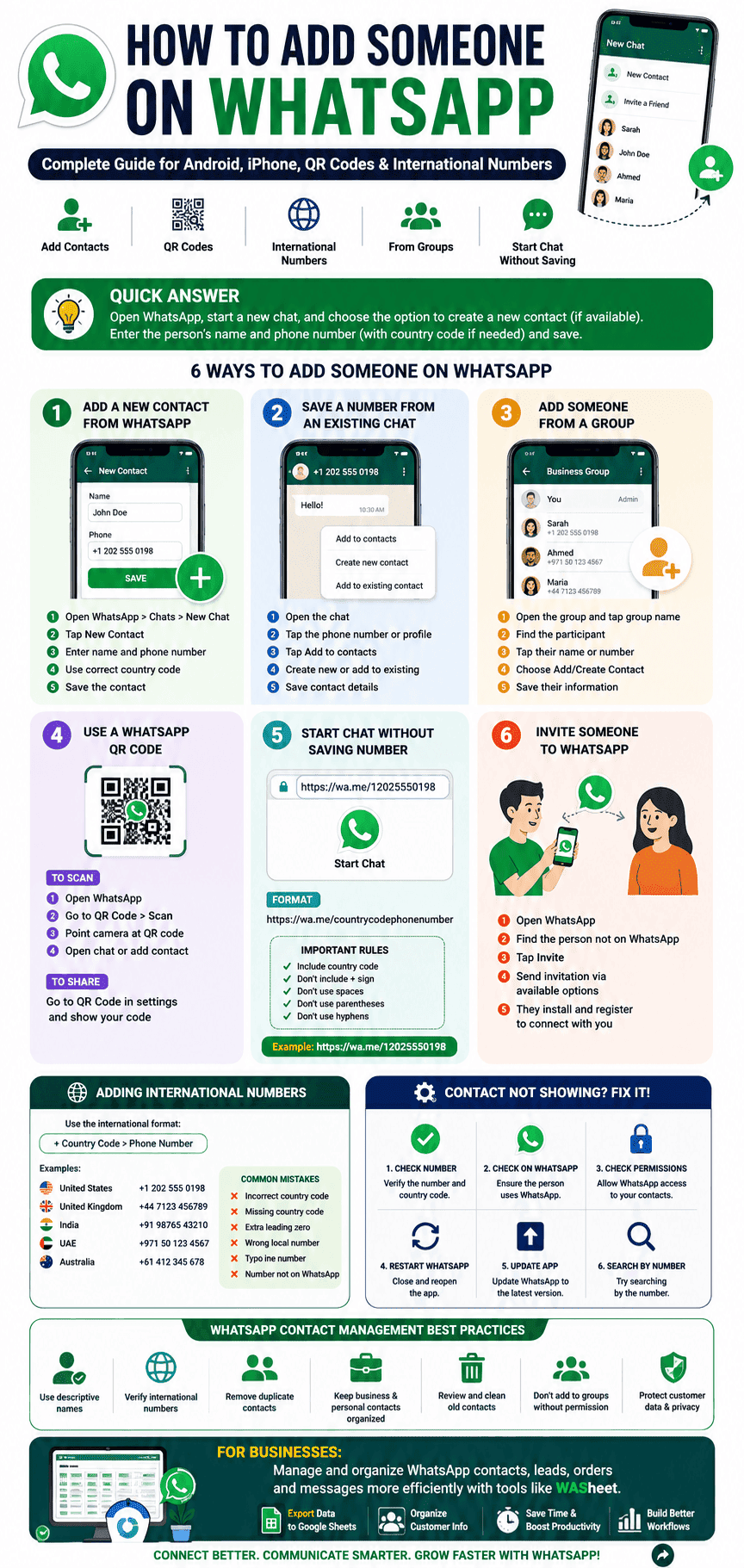
In this guide, you’ll learn how to add contacts in WhatsApp using Android and iPhone, how to save an unknown number from a chat or group, how to add international WhatsApp numbers correctly, how to use WhatsApp QR codes, and what to do when a newly saved contact doesn’t appear in your WhatsApp contact list.
Adding someone on WhatsApp is usually simple, but the exact steps depend on how you received their number. You might want to save a new phone number manually, add someone directly from a WhatsApp chat, save a person from a group, scan a QR code, or message an international contact.
The good news is that WhatsApp offers several convenient ways to connect with people.

We’ll also cover how to start a WhatsApp chat without saving a number and share practical contact-management tips for personal users, freelancers, online sellers, and businesses.
Quick Answer: How Do You Add Someone on WhatsApp?
The easiest method is to open WhatsApp, start a new chat, and choose the option to create a new contact if it is available in your version of the app. Enter the person’s name and phone number, including the correct international country code when necessary, then save the contact.
You can also:
- Save the number through your phone’s Contacts app.
- Add an unsaved number directly from an existing WhatsApp chat.
- Save a participant from a WhatsApp group.
- Scan a person’s WhatsApp QR code.
- Open a direct WhatsApp chat using a
wa.melink without saving the number first.
The menu names and location of these options can change slightly between WhatsApp versions and operating systems, so don’t worry if your screen looks a little different from the steps below.
How to Add a Contact on WhatsApp for Android
There are several ways to add a new WhatsApp contact on an Android phone. The best method depends on whether you already have the person’s phone number, have received a message from them, or are meeting them in person.
Method 1: Add a New Contact from WhatsApp
On many current versions of WhatsApp for Android, you can create a contact while starting a new conversation.
- Open WhatsApp on your Android phone.
- Open the Chats tab.
- Tap the New Chat button.
- Look for New contact.
- Enter the person’s name.
- Enter their phone number.
- If it’s an international number, use the correct country code.
- Save the contact.
You can then search for the person’s name in WhatsApp and start a conversation.
If your version of WhatsApp doesn’t show the same option, save the number through the Android Contacts app instead. Once WhatsApp has access to your contacts, the saved person should become available when you search for a new chat.
Method 2: Save a Number from an Existing WhatsApp Chat
Someone may message you before you’ve saved their number. You don’t need to manually copy and paste the number into your phonebook.
To save the person:
- Open the WhatsApp conversation.
- Tap the unsaved phone number or the contact information shown at the top of the chat.
- Look for an option such as Add to contacts.
- Choose Create new contact or Add to existing contact.
- Enter or update the person’s details.
- Save the contact.
The exact wording may vary depending on your Android phone and WhatsApp version.
This method is especially useful when customers, clients, delivery drivers, or new business leads contact you through WhatsApp.
How to Add Someone on WhatsApp for iPhone
Adding a WhatsApp contact on an iPhone is also straightforward. You can create the contact from WhatsApp when the option is available or save the number directly in Apple’s Contacts app.
Method 1: Add a Contact from WhatsApp
Depending on your current WhatsApp version:
- Open WhatsApp.
- Go to Chats.
- Tap the New Chat icon.
- Select New Contact if the option appears.
- Enter the person’s name and phone number.
- Save the contact.
If the option isn’t available in your version, use the iPhone Contacts app instead.
Method 2: Save a WhatsApp Number Using the iPhone Contacts App
- Open the Contacts app on your iPhone.
- Tap the + button.
- Enter the person’s name.
- Enter their phone number.
- Use the appropriate country code for an international number.
- Tap Done.
Now open WhatsApp and search for the person’s name when starting a new chat.
If you cannot find the contact, check WhatsApp’s permission to access your contacts in your iPhone settings. The exact settings path can vary slightly between iOS versions, but WhatsApp needs appropriate Contacts access if you want it to read contacts stored in your phone’s address book.
WhatsApp contact and QR-code workflows are available on both major mobile platforms, although interface details can change as the app is updated.
How to Add Someone on WhatsApp Without Saving Their Number
You don’t always need to save a phone number to your contacts before starting a WhatsApp conversation.
For a one-time conversation, a customer inquiry, or a temporary business interaction, you can use WhatsApp’s Click to Chat format.
The basic format is:
https://wa.me/country-code-phonenumber
Replace country-code-phonenumber with the complete international phone number.
For example, a US number could be represented as:
https://wa.me/12025550198
When the link is opened on a supported device, it can take you directly to a WhatsApp conversation with that number.
Important Formatting Rules
When creating a wa.me link:
- Include the country code.
- Don’t include the
+sign. - Don’t include spaces.
- Don’t include parentheses.
- Don’t include hyphens.
For example:
Correct:
https://wa.me/12025550198
Not recommended:
https://wa.me/+1 202-555-0198
This approach is particularly useful for businesses that want to add a WhatsApp chat button to a website, product page, social media profile, email signature, or online advertisement.
How to Add an International Number on WhatsApp
International contacts are one of the most common reasons people can’t find a newly saved number on WhatsApp.
The key is to save the number using the correct international dialing format.
Generally, you should use:
+ → Country Code → Phone Number
For example:
- United States:
+1 - United Kingdom:
+44 - India:
+91 - United Arab Emirates:
+971 - Australia:
+61
Example of an International WhatsApp Number
Suppose you’re saving a UK mobile number. You would generally save it using the UK country code:
+44 7123 456789
The precise number of digits and local dialing rules depend on the country, so always verify the international format for the number you’re saving.
Why Country Codes Matter
A phone number that works when dialed locally may not be recognized correctly when saved without its international country code.
For example, if you’re saving a contact from another country, don’t assume that entering only the local number will be enough. Use the complete international format.
Common International Contact Mistakes
If WhatsApp doesn’t recognize an international contact, check for:
- An incorrect country code.
- A missing country code.
- An incorrect local number.
- An extra leading zero after the country code.
- A typo in the phone number.
- A number that isn’t registered with WhatsApp.
One important point: don’t blindly remove zeros from every international number. The correct formatting depends on the country’s numbering system. The safest approach is to convert the number from its local dialing format to the country’s standard international format.
How to Add a WhatsApp Contact Using a QR Code
If you’re standing next to someone and want to connect quickly, a WhatsApp QR code can be easier than typing a long phone number.
WhatsApp provides QR-code functionality for sharing contact information and starting conversations. The general process is similar on Android and iPhone, although the location of the QR-code option may change with app updates.
To Scan Someone’s WhatsApp QR Code
- Open WhatsApp.
- Open the QR-code feature from your profile or settings area, depending on your version.
- Choose the option to Scan a QR code.
- Point your phone’s camera at the other person’s QR code.
- Follow the on-screen prompt to open the conversation or add the contact.
To Share Your WhatsApp QR Code
- Open WhatsApp.
- Open your profile or settings area.
- Find the QR code option associated with your account.
- Display your personal QR code.
- Let the other person scan it.
QR codes are particularly convenient at:
- Networking events.
- Conferences.
- Retail stores.
- Business meetings.
- Customer service desks.
- In-person sales.
- WhatsApp Business promotions.
For businesses, a QR code can reduce the friction between seeing an advertisement and starting a WhatsApp conversation.
How to Add Someone from a WhatsApp Group
You may want to save someone you’ve met through a WhatsApp group without manually typing their number.
To do this:
- Open the WhatsApp group.
- Tap the group name to view group information.
- Find the participant you want to save.
- Tap their name or phone number.
- Choose the option to add or create a contact.
- Save their information.
The available options can differ depending on whether the person is already saved in your contacts and which version of WhatsApp you’re using.
Privacy Tip
Before adding someone to another group or contacting them for business purposes, consider whether they expect to hear from you. Saving someone’s number is easy, but respecting their privacy and communication preferences is just as important.
How to Invite Someone to WhatsApp
If a friend, colleague, or customer doesn’t currently use WhatsApp, you can invite them to join.
The exact invitation options depend on your device and WhatsApp version, but generally you can:
- Open WhatsApp.
- Start a new chat or open your contacts list.
- Find the person who isn’t using WhatsApp.
- Select the available Invite option.
- Send the invitation through an available messaging or sharing method.
Once the person installs WhatsApp and registers their phone number, you can communicate with them through the app.
WhatsApp Contact Not Showing? Here’s How to Fix It
One of the most common questions is:
“I saved a number, so why can’t I see the person on WhatsApp?”
There are several possible reasons.
1. Check the Phone Number
Make sure the number is correct.
For international contacts, verify that you used the correct country code and international format.
A single incorrect digit can prevent you from finding the right person.
2. Check Whether the Number Uses WhatsApp
Saving a phone number does not automatically mean that the person has a WhatsApp account.
They may:
- Not have WhatsApp installed.
- Use WhatsApp with a different phone number.
- Have changed their number.
- Have deleted their WhatsApp account.
3. Check WhatsApp Contact Permissions
If WhatsApp cannot access your phone contacts, saved numbers may not appear as expected.
On Android, review WhatsApp’s Contacts permission in your phone’s app settings.
On iPhone, check WhatsApp’s access to Contacts in iOS settings.
The exact menu names may vary depending on your operating system version.
4. Close and Reopen WhatsApp
If a newly saved contact isn’t appearing, completely close WhatsApp and reopen it.
Then try searching for the contact again.
5. Update WhatsApp
An outdated app version can sometimes cause unexpected behavior.
Check the Google Play Store or Apple App Store for an available WhatsApp update.
6. Search by Phone Number
Instead of searching by the person’s name, try searching using the number you saved.
This can help identify whether the problem is with contact syncing or the contact information itself.
Can You Add WhatsApp Contacts from WhatsApp Web?
WhatsApp has been moving toward more flexible contact management across devices, including the ability to manage contacts within WhatsApp rather than relying exclusively on the phone’s address book.
However, available contact-management features can vary by account, device, app version, and rollout status.
If you’re using WhatsApp Web or the desktop app and don’t see an option to create or manage contacts, the most reliable approach is to use the mobile WhatsApp app or your phone’s native Contacts app.
This is an area where WhatsApp’s contact-management experience continues to evolve, so older guides that say you must always use your phone’s address book may no longer describe every current setup.
How to Edit or Delete a WhatsApp Contact
If you saved a contact with the wrong name or phone number, you can update the contact information.
On Android
Open your phone’s Contacts app, find the person, edit their information, and save the changes.
On iPhone
Open the Contacts app, select the person, tap Edit, make your changes, and save.
Depending on how the contact was created and your current WhatsApp configuration, contacts stored within WhatsApp may be managed separately from contacts in your phone’s address book.
Does Deleting a Contact Delete the WhatsApp Chat?
No.
Deleting someone from your contacts does not automatically delete your existing WhatsApp conversation.
Your chat history and your phone’s contact list are separate things.
If you want to remove the conversation as well, you’ll need to delete the WhatsApp chat separately.
How to Organize WhatsApp Contacts for Business
If you use WhatsApp for work, customer support, sales, orders, or lead generation, your contact list can become difficult to manage quickly.
A simple naming and organization system can make a big difference.
For example, you might organize contacts using names such as:
- Sarah – Client – USA
- Ahmed – Supplier – UAE
- John – Lead – UK
- Maria – Customer – Spain
You can also use your phone’s contact groups or your preferred CRM system to keep customer information organized.
For businesses that receive large volumes of WhatsApp messages, manually copying customer information into spreadsheets can become time-consuming.
This is where automation tools such as WASheet can be useful for businesses that want to move relevant WhatsApp contact or customer information into Google Sheets and create a more structured workflow.
Instead of relying entirely on manual data entry, businesses can use a spreadsheet-based workflow to organize information such as:
- Customer names.
- Phone numbers.
- Order information.
- Delivery details.
- Lead information.
- Message-related data.
The right workflow depends on your business needs, privacy requirements, and the tools you use.
If your team handles a large number of WhatsApp conversations, the goal should be to reduce repetitive data entry while maintaining accurate and responsible customer records.
WhatsApp Contact Management Best Practices
Whether you’re using WhatsApp for personal conversations or business communication, these practices can help keep your contacts organized.
1. Save Contacts With Descriptive Names
Avoid saving customers as generic names such as “Client 1” or “New Customer.”
Use a consistent naming system that makes people easy to identify.
2. Verify International Numbers
Always confirm the country code before saving an international contact.
3. Remove Duplicate Contacts
Duplicate entries can make it difficult to find the correct person and may create confusion when starting a conversation.
4. Keep Business and Personal Contacts Organized
If you regularly use WhatsApp for work, consider separating personal and professional contacts through clear labels or your preferred contact-management system.
5. Review Old Contacts
Periodically remove outdated or duplicate contact information from your address book.
6. Don’t Add People to Groups Without Permission
If you’re managing a community or business group, respect people’s privacy and communication preferences.
7. Be Careful with Customer Data
If you’re collecting customer names, addresses, phone numbers, or order details, store that information responsibly and follow applicable privacy and data-protection requirements.
Frequently Asked Questions About Adding WhatsApp Contacts
How do I add a new contact to WhatsApp?
Open WhatsApp and start a new chat. If your version provides a New Contact option, enter the person’s name and phone number and save it. You can also add the person through your phone’s Contacts app.
How do I save someone’s WhatsApp number?
Open the conversation with the unsaved number, tap the person’s number or profile information, and look for an option to add or create a contact. You can then save the number to your contacts or, where supported, manage it within WhatsApp.
How do I add someone on WhatsApp without saving their number?
Use a WhatsApp Click to Chat link in the format:
https://wa.me/country-code-phonenumber
This lets you start a WhatsApp conversation without first creating a traditional phonebook entry.
Why is my new contact not showing on WhatsApp?
Check the phone number, country code, WhatsApp contact permissions, and whether the person actually uses WhatsApp. Restarting or updating the app may also help.
How do I add an international number to WhatsApp?
Save the number using the correct international format, including the country code. For example, a UK number may begin with +44, while an Indian number may begin with +91.
Can I add a WhatsApp contact using a QR code?
Yes. WhatsApp provides QR-code features that allow people to share contact information and connect without manually typing a phone number. The location of the QR-code option may vary between WhatsApp versions.
How do I add someone from a WhatsApp group?
Open the group information, select the participant you want to save, and choose the available option to add or create a contact.
Can I edit a WhatsApp contact?
If the contact is stored in your phone’s address book, edit it through your phone’s Contacts app. If the contact is managed within WhatsApp, use the contact-management options available in your version of the app.
Does deleting a contact delete the WhatsApp conversation?
No. Removing a contact from your phonebook does not automatically delete the existing WhatsApp chat.
How do I add a customer to WhatsApp?
Save the customer’s phone number using the correct international format, then find the person in WhatsApp and start a conversation. For businesses managing large volumes of contacts, a structured CRM or spreadsheet workflow can help organize customer information more efficiently.
Final Thoughts
Learning how to add someone on WhatsApp doesn’t have to be complicated.
Whether you’re using an Android phone or iPhone, you can typically connect with a new person by creating a contact, saving their number, adding them from an existing chat, selecting a participant from a group, or using a WhatsApp QR code.
For international contacts, the most important step is using the correct country code and phone-number format. If a saved number doesn’t appear, check the number carefully, confirm that the person uses WhatsApp, review your contact permissions, and make sure your app is up to date.
For personal users, these simple steps are usually all you need.
For businesses, however, WhatsApp contact management can become much more complex as customer conversations, leads, orders, and inquiries increase. In that situation, tools such as WASheet can help businesses organize relevant WhatsApp data in Google Sheets and build a more efficient workflow.
The key is to choose a contact-management process that fits the way you actually use WhatsApp—whether you’re keeping in touch with friends, managing customers, or growing an online business.
Manage Your WhatsApp Contacts More Efficiently with WASheet
If you’re managing customer conversations, orders, leads, or delivery information through WhatsApp, keeping everything organized manually can take a lot of time.
WASheet helps businesses to add bulk contacts into whatsapp with their import contacts feature also streamline their WhatsApp data management by organizing relevant customer information in Google Sheets, making it easier to manage contacts and build efficient workflows.
It’s a practical solution for freelancers, online stores, customer support teams, and businesses that rely on WhatsApp for daily communication.
Ready to simplify your WhatsApp workflow?
Visit WASheet to learn more and explore how it can help you manage your WhatsApp contacts and customer data more efficiently.